

If you’ve spent the last hour googling a WordPress error message and ended up with seventeen tabs of contradictory advice, you’re not alone. WordPress powers over 40% of all websites, which means the ecosystem of tutorials, forums, and “quick fix” articles is massive, contradictory, and often written for developers rather than regular people. The confusion you’re feeling isn’t a sign that you’re not technical enough. It’s a sign that the WordPress help landscape is genuinely hard to navigate.
This guide walks through the eight WordPress problems that trip up beginners and small business owners most often, with plain-language explanations and fixes you can actually follow. Whether you’re locked out of your dashboard, staring at a blank white screen, or wondering why your site takes ten seconds to load, you’ll find a direct answer here and a clear sense of when to tackle it yourself versus when to call for backup.
You’re Not the Problem: WordPress Just Has a Learning Curve

Here’s the thing nobody tells you when you first install WordPress: the software itself is relatively straightforward, but the ecosystem around it was built by developers, for developers. The documentation assumes you know what a function file is. The error messages tell you something “failed to parse” without explaining what parsing means. Even the support forums are full of answers that start with “just add this snippet to your functions.php,” which is terrifying advice if you don’t know what functions.php is or where to find it.
The frustration you feel is structural, not personal. WordPress gives you extraordinary control over your site, but that control comes with responsibility for things that hosted platforms like Squarespace or Wix handle invisibly: updates, backups, plugin compatibility, server configuration. When something breaks, there’s no single company to call. You’re piecing together answers from your host, your plugin developer, your theme creator, and a forum post from 2019 that may or may not still apply.
That said, the same problems come up over and over. Once you recognize the patterns, most WordPress issues follow a predictable diagnosis-and-fix flow. If you’ve already worked through our phase-by-phase guide to building a WordPress site, this article is your troubleshooting companion for everything that happens after launch.
The 8 Most Common WordPress Problems (and How to Actually Fix Them)
These eight issues account for the vast majority of WordPress help requests from beginners and small business owners. Each one has a typical cause, a step-by-step fix, and a point where you should stop troubleshooting and ask for professional help. Let’s walk through them.
| Problem | Typical Cause | DIY Fix Time | When to Get Help |
|---|---|---|---|
| Can’t log in to admin | Forgotten password, changed URL, or plugin lockout | 10 to 30 minutes | If database access is needed |
| White screen of death | PHP error from a plugin or theme | 15 to 45 minutes | If disabling plugins doesn’t fix it |
| Plugin conflict breaks the site | Two plugins fighting over the same function | 20 to 60 minutes | If you can’t identify the culprit |
| Site loads slowly | Unoptimized images, no caching, or cheap hosting | 1 to 3 hours | If speed score stays under 50 |
| Database connection error | Wrong credentials or server overload | 15 to 30 minutes | If credentials are correct but it persists |
| 404 errors on pages | Permalink structure changed or reset | 5 minutes | If re-saving permalinks doesn’t work |
| Theme changes not showing | Caching, child theme issues, or browser cache | 10 to 20 minutes | If changes never appear at all |
| FTP credentials prompt on install | Server file permission settings | 10 to 30 minutes | If you’re not comfortable editing config files |
1. Can’t Log In to Your WordPress Admin Dashboard
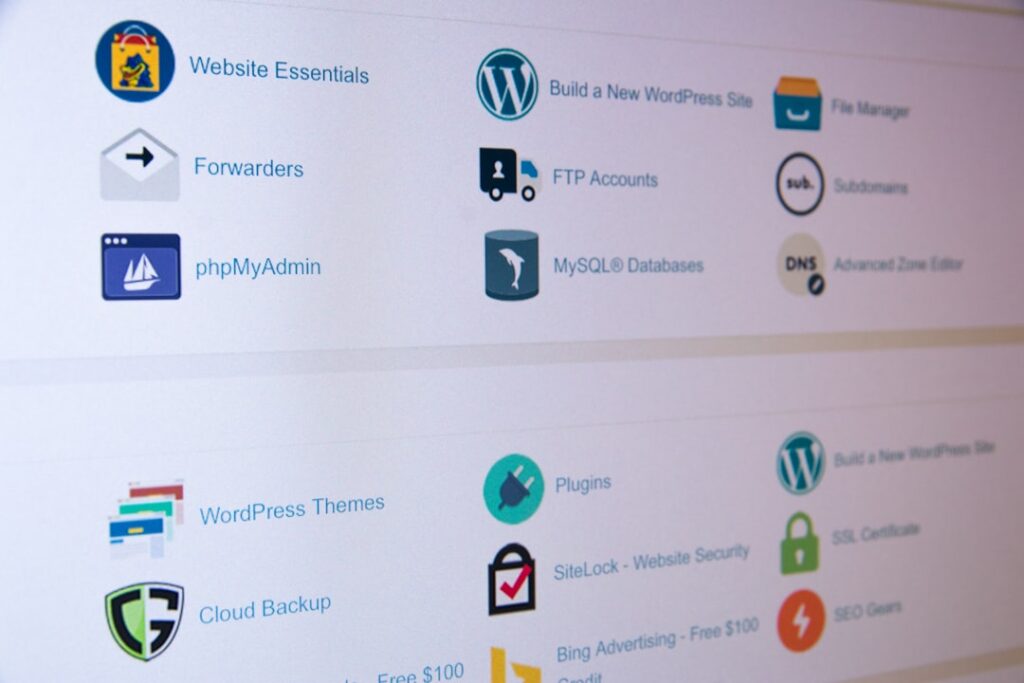
This is the most common WordPress help request, and it’s usually the easiest to fix. You go to yoursite.com/wp-admin, enter your credentials, and either get an “incorrect password” message, a redirect loop, or a page that just won’t load.
Start with the basics. Click “Lost your password?” on the login screen and follow the email reset flow. If the email never arrives, check your spam folder, then verify that WordPress is sending email from the correct address. Many shared hosting environments have unreliable email delivery, which is a common cause of reset emails going missing.
If the password reset doesn’t work or you’ve been locked out entirely, the issue may be a security plugin that flagged your login attempts as suspicious. Wordfence and similar plugins can temporarily ban IP addresses after repeated failed logins. Wait 20 minutes and try again, or ask your hosting provider to whitelist your IP address.
A trickier scenario: you changed your WordPress URL or site address in Settings, and now you can’t access the dashboard at all because WordPress keeps redirecting to a URL that doesn’t exist. The fix is to add two lines to your wp-config.php file (in your site’s root directory, accessible via your hosting control panel or FTP):
define(‘WP_HOME’,’https://yourcorrecturl.com’);
define(‘WP_SITEURL’,’https://yourcorrecturl.com’);
Replace with your actual, correct URL. Save the file, log in, then go back to Settings and fix the URL fields properly. Remove those two lines from wp-config.php afterward so the database values control the URLs going forward.
2. The White Screen of Death
You load your site and see nothing but a blank white page. No error message, no content, just white. This is the infamous “white screen of death,” and while it looks catastrophic, it’s usually caused by a PHP error in a plugin or theme that’s suppressing the error output for security reasons.
Step one: enable error reporting so you can actually see what’s wrong. Add these lines to your wp-config.php file, just above the line that says “That’s all, stop editing! Happy publishing”:
define(‘WP_DEBUG’, true);
define(‘WP_DEBUG_DISPLAY’, true);
Reload your site. Instead of a blank screen, you’ll likely see a specific error message pointing to a file and line number. That file path usually reveals which plugin or theme is the culprit.
If you don’t want to edit config files, there’s a faster diagnostic approach. Connect to your site via FTP or your hosting file manager, navigate to wp-content, and rename the “plugins” folder to “plugins-old.” This deactivates all plugins at once. Reload your site. If the white screen disappears, a plugin was the cause. Rename the folder back to “plugins,” then reactivate each plugin one by one, reloading your site after each activation, until the white screen returns. The last plugin you activated is the problem.
If disabling all plugins doesn’t fix the white screen, the issue is likely your theme. Rename your active theme’s folder (also under wp-content/themes) to deactivate it. WordPress will fall back to a default theme like Twenty Twenty-Four, and if the screen returns to normal, your theme has a PHP error that needs a developer’s attention.
3. Plugin Conflicts Breaking Your Site
Plugin conflicts are the hidden tax of WordPress flexibility. Two plugins that each work fine individually can break your site when installed together, because they’re both trying to modify the same WordPress function or hook into the same page load. The symptoms range from a broken layout to a fatal error to specific features that stop working (your contact form won’t submit, your gallery won’t load, your SEO meta tags disappear).
The diagnosis method is the same as the white screen approach: deactivate all plugins, then reactivate them one at a time, testing your site after each. When the problem reappears, you’ve found the conflicting plugin. From there, check if the plugin developer has a known conflict with another tool you’re using, or search the plugin’s support forum for the specific symptom you’re seeing.
The real fix is often choosing between the two conflicting plugins rather than trying to make both work. If your caching plugin and your page builder are fighting over minified JavaScript, the page builder usually wins because it’s core to your site’s design. Replace the caching plugin with an alternative. Our guide to WordPress page builders for beginners covers which tools tend to play well together and which combinations cause headaches.
Prevention matters more than cure here. Keep your plugin count lean, update everything regularly, and avoid installing two plugins that serve the same purpose (two SEO plugins, two caching plugins, two security plugins). Each overlap is a potential conflict waiting to happen.
4. Your WordPress Site Is Painfully Slow
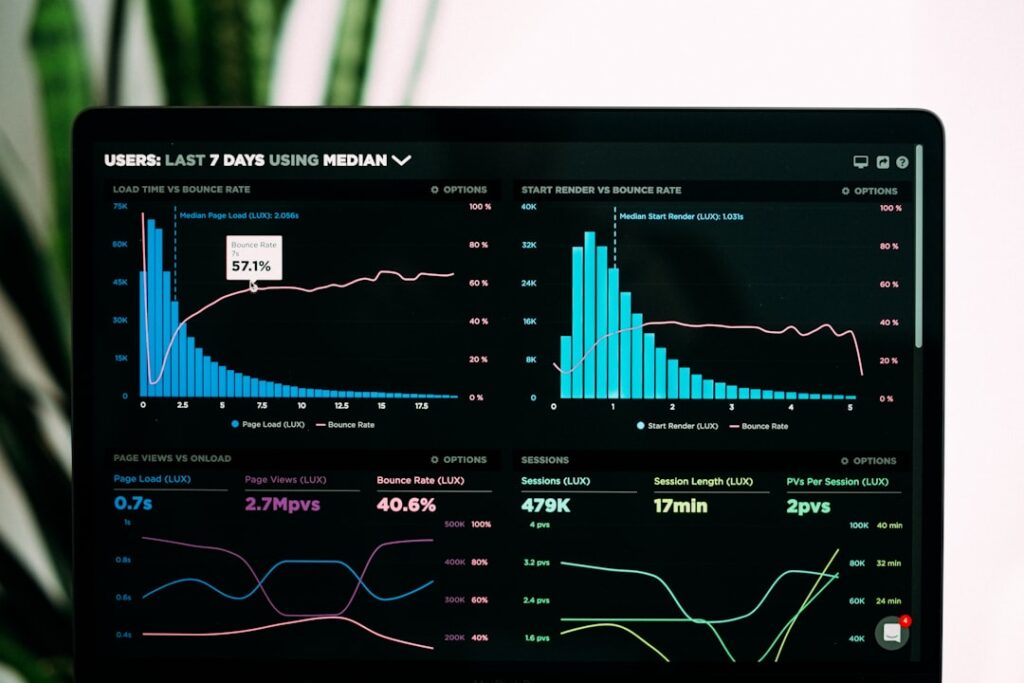
A slow WordPress site costs you visitors and search rankings. Google’s research consistently shows that pages taking longer than three seconds to load see significant bounce rate increases. But “my site is slow” is too vague to fix without knowing the actual cause, so start by measuring.
Run your site through Google PageSpeed Insights or GTmetrix. Both are free and will give you a specific score plus a prioritized list of issues. The most common culprits, in order of impact for most beginner sites:
Unoptimized images. This is the number one speed killer on WordPress sites. A single photo straight from your phone can be 5 megabytes, and if your homepage loads five of those, your site is loading 25 MB before it renders. Install a free image optimization plugin like Smush or ShortPixel, and configure it to compress existing images and auto-compress future uploads. Set a maximum width of 2000 pixels for large images.
No caching. Without caching, WordPress rebuilds every page from scratch on every visit, querying the database and executing PHP for each request. A caching plugin like LiteSpeed Cache or W3 Total Cache stores the finished HTML and serves it instantly. This alone can cut load times in half on shared hosting.
Excessive plugins. Every plugin adds code that runs on page load. A site with 30 plugins will almost always be slower than one with 8, even if those 8 do the same total work. Audit your plugin list quarterly and remove anything you’re not actively using.
Hosting limitations. If you’ve optimized images, enabled caching, trimmed plugins, and your site is still slow, your hosting is the bottleneck. Shared hosting at $3/month has physical limits. Upgrading to managed WordPress hosting or VPS hosting often delivers a bigger speed improvement than any plugin tweak. For an honest comparison of hosting tiers and their real-world performance trade-offs, see our guide to web hosting providers.
5. “Error Establishing a Database Connection”
This error means WordPress can’t talk to its database, where all your content, settings, and user data live. When the connection fails, nothing loads. It’s alarming but usually fixable within 30 minutes.
The most common cause is incorrect database credentials in your wp-config.php file. This typically happens after a server migration, a hosting change, or an accidental edit. Open wp-config.php and check these four lines:
DB_NAME, DB_USER, DB_PASSWORD, DB_HOST
Verify each value against the database settings in your hosting control panel (usually under “MySQL Databases” or “Database Manager”). If your host uses “localhost” as the database host, that’s standard. Some hosts use a specific server address instead, so check your hosting documentation if “localhost” isn’t working.
If the credentials are correct and the error persists, your database may be corrupted. WordPress has a built-in repair tool. Add this line to wp-config.php, just above the “That’s all, stop editing!” line:
define(‘WP_ALLOW_REPAIR’, true);
Then visit yoursite.com/wp-admin/maint/repair.php in your browser. Click “Repair Database.” Remove that line from wp-config.php when you’re done, as leaving it enabled lets anyone access the repair page.
If neither fix works, the problem is on your hosting provider’s end: the database server may be down or overloaded. Contact your host’s support team. This is one of those situations where you shouldn’t spend hours troubleshooting; if the credentials are correct and the repair tool doesn’t help, it’s your host’s problem to solve.
6. 404 Errors on Pages That Should Work
Your homepage loads fine, but every other page returns a “404 Not Found” error. This is almost always a permalink issue, and the fix takes about five seconds.
Go to Settings, then Permalinks in your WordPress dashboard. Don’t change anything. Just click “Save Changes” at the bottom of the page. This forces WordPress to regenerate its rewrite rules, which tell the server how to translate pretty URLs like yoursite.com/about into the correct database query. The rules can break after a migration, a plugin installation, or a server configuration change, and re-saving them fixes it in most cases.
If the 404s persist after re-saving permalinks, your .htaccess file (in your site’s root directory) may be missing or corrupted. Create or edit it with this content:
# BEGIN WordPress
<IfModule mod_rewrite.c>
RewriteEngine On
RewriteRule .* – [E=HTTP_AUTHORIZATION:%{HTTP:Authorization}]
RewriteBase /
RewriteRule ^index.php$ – [L]
RewriteCond %{REQUEST_FILENAME} !-f
RewriteCond %{REQUEST_FILENAME} !-d
RewriteRule . /index.php [L]
</IfModule>
# END WordPress
This is the standard WordPress .htaccess configuration. If your server runs Nginx instead of Apache (common with some managed hosts), .htaccess files aren’t used at all, and you’ll need to ask your host to check the Nginx rewrite rules instead.
7. Theme Changes Not Showing Up
You edit your theme, save your changes, refresh the page, and nothing looks different. Before you panic about whether you edited the right file, work through three quick checks.
Browser cache. Your browser may be serving an old version of the page. Hard refresh by pressing Ctrl+F5 (Windows) or Cmd+Shift+R (Mac). Or open the page in an incognito window to rule out caching entirely.
WordPress caching. If you have a caching plugin enabled, it’s serving stored HTML that doesn’t reflect your changes. Clear the cache from your caching plugin’s settings page. Some hosts also have server-level caching that needs to be cleared separately from your hosting control panel.
Child theme issues. If you’re using a child theme (which is good practice for customizations), make sure your changes are in the child theme’s files, not the parent theme’s. Edits to the parent theme get overwritten on the next update. If your child theme isn’t activating, check that the “Template” value in the child theme’s style.css header exactly matches the folder name of the parent theme.
If none of these apply and your changes still don’t appear, you may be editing the wrong template file. WordPress uses a specific template hierarchy to decide which file renders a given page. A page using a custom template won’t reflect changes you make to page.php, for example. Check the Page Attributes section in the WordPress editor to see which template is assigned to the page you’re editing.
8. WordPress Keeps Asking for FTP Credentials
Every time you try to install or update a plugin, theme, or WordPress core, you get a screen asking for your FTP hostname, username, and password. This happens because WordPress doesn’t have direct write access to your site’s files, so it falls back to FTP as an alternative method.
The fix is to tell WordPress to use the “direct” filesystem method. Add this line to your wp-config.php file, near the other define statements:
define(‘FS_METHOD’, ‘direct’);
In most cases, this resolves the FTP prompt immediately. If it doesn’t, the issue is file permissions on your server. Your hosting control panel usually has a file manager where you can check and adjust permissions. WordPress directories should typically be set to 755, and files to 644. If you’re not comfortable adjusting file permissions, this is a good moment to contact your hosting support team, as incorrect permissions can create security vulnerabilities.
When to DIY vs. When to Ask for Help
Not every WordPress problem is worth solving yourself, and knowing the difference saves you hours of frustration. The decision comes down to three factors: whether the fix involves editing server files, whether a mistake could break your live site, and whether you have a recent backup.
Tackle it yourself when the fix lives entirely within the WordPress dashboard. Re-saving permalinks, deactivating and reactivating plugins, clearing cache, resetting your password, and adjusting settings are all safe DIY tasks. Even if you get something wrong, you can usually undo it with a few clicks. These fixes typically take under 30 minutes and carry minimal risk.
Proceed with caution when the fix requires editing wp-config.php or .htaccess. These files control core WordPress behavior, and a single typo (a missing semicolon, an extra space before the PHP opening tag) can take your entire site offline. Always copy the current version of the file before making changes, so you can restore it instantly if something breaks. If you’re comfortable following instructions precisely and have a backup, these fixes are within reach. If the idea of editing server files makes your stomach tighten, that’s a clear signal to get help.
Call for professional help when the problem involves the database directly, when you’ve tried the standard fixes and they haven’t worked, or when your site is a revenue-generating business and every hour of downtime costs money. A WordPress developer can diagnose server-level issues, database corruption, and complex plugin conflicts in a fraction of the time it takes a beginner to research them. If your site generates leads or sales, the math is straightforward: paying someone $100 to $200 to fix a critical issue in an hour is cheaper than losing a day of revenue while you troubleshoot.
One non-negotiable rule: never attempt a significant fix without a current backup. If you don’t have UpdraftPlus or a similar backup plugin running, install one and create a full backup before touching any files or settings. A backup turns a potential catastrophe into a minor inconvenience. If you’re starting from scratch, our guide to building a WordPress site without the overwhelm covers the essential plugin setup, including backups, that prevents most of these problems before they start.
Free WordPress Help Resources That Are Actually Useful
Not every WordPress problem requires paid help. A surprising number of issues can be resolved with free resources, if you know which ones to trust. The challenge is separating the genuinely useful content from the SEO-optimized fluff that promises a fix but delivers a generic listicle.
The WordPress.org Support Forums
The official WordPress support forums at wordpress.org/support are moderated by community volunteers and organized by topic. The most valuable sections are the plugin-specific and theme-specific support forums, where you can search for your exact error message or symptom and often find a thread where someone already solved the same problem. When posting a question, include your WordPress version, your theme, a list of active plugins, and the exact error message. Vague questions get vague answers.
Your Hosting Provider’s Support Team
This is the most underused free resource in WordPress. Most hosting providers offer 24/7 live chat support, and their support teams handle WordPress issues all day, every day. Database connection errors, server-level caching problems, SSL certificate issues, file permission questions, and email delivery failures are all things your host can often resolve directly. If the problem is even partially server-related, contact your host first. You’re already paying for their support.
Plugin and Theme Developer Documentation
When a specific plugin or theme is causing the issue, the developer’s own documentation is often the fastest path to a fix. Reputable developers maintain knowledge bases, FAQ sections, and changelogs that document known conflicts and their solutions. This is more reliable than a random forum post because the developer actually understands their own code. Check the plugin’s page in the WordPress directory for a link to the developer’s support site.
WordPress Codex and Developer Resources
The WordPress Codex (codex.wordpress.org) and the newer Developer Handbook (developer.wordpress.org) are the official documentation for WordPress. They’re more technical than most beginners need, but they’re the authoritative source for understanding how WordPress works under the hood. When a forum answer references a specific function or hook, the Codex will explain what it does and how to use it correctly.
If you’ve worked through the standard fixes, consulted the free resources, and you’re still stuck, that’s the moment to bring in someone who can look at your specific setup. We at WordPress AI Tools work with small business owners and solopreneurs who don’t have the time to become WordPress experts but need their sites running reliably. Whether it’s a plugin conflict that won’t resolve, a performance issue that won’t budge, or a setup decision you’re not confident about, we can help you cut through the noise and get to a working solution without the guesswork.
Frequently Asked Questions About Getting WordPress Help
These are the questions we hear most often from beginners and small business owners who hit a WordPress wall and aren’t sure where to turn next.
Frequently Asked Questions
What should I do first when my WordPress site breaks?
Don’t panic, and don’t start randomly changing things. First, check if you have a recent backup (UpdraftPlus or your host’s backup system). Second, note exactly what happened: what you were doing when it broke, what error message you saw, and whether it affects the entire site or just one page. Third, try the simplest fix first: clear your browser cache and your WordPress cache, then deactivate your most recently installed plugin to see if that resolves the issue.
How much does it cost to hire someone for WordPress help?
For straightforward fixes like plugin conflicts, login issues, or broken layouts, expect to pay $75 to $150 per hour, with most issues resolved in one to two hours. For more complex problems like database corruption, custom theme development, or performance optimization, rates typically range from $100 to $200 per hour. Some providers offer flat-rate packages for common fixes. Always ask for an estimate before work begins, and make sure you have a backup before anyone touches your live site.
Can my hosting provider help with WordPress problems?
Yes, and you should contact them first for any server-related issue. Most hosting providers offer 24/7 support via live chat or ticket, and their teams handle WordPress-specific problems daily. They can help with database connection errors, SSL certificate issues, file permissions, server-level caching, email delivery problems, and even basic WordPress installation issues. This support is included in your hosting plan, so use it. They cannot help with plugin-specific bugs or theme customization, but they can tell you whether the problem is on their end.
Is it safe to edit wp-config.php myself?
It can be safe if you follow instructions precisely and always make a backup copy of the file before editing. The most common mistakes are adding code in the wrong location (it must go above the line that says ‘That’s all, stop editing!’), introducing a stray space or blank line before the opening PHP tag, or forgetting a semicolon. Any of these will take your site offline. If you’re uncomfortable following technical instructions exactly, or if your site is business-critical, ask for help instead. The file itself is straightforward, but errors have immediate consequences.
How do I prevent WordPress problems before they happen?
Three habits prevent the majority of WordPress issues. First, keep everything updated: WordPress core, themes, and plugins. Most security vulnerabilities and compatibility issues are fixed in updates. Second, maintain a backup system that runs automatically and stores copies off-site (Google Drive, Dropbox). UpdraftPlus is free and handles this well. Third, keep your plugin count lean and avoid installing redundant tools. A site with 8 well-chosen plugins will have fewer problems than one with 30 plugins that overlap in functionality.

