

If you’ve been circling the idea of building a WordPress site for weeks — tabs open, nothing decided — you’re in the right place. WordPress powers 43.4% of all websites on the internet, according to W3Techs, making it the most widely used website builder in the world. But that popularity comes with a side effect: an overwhelming number of guides, tools, and options that leave most beginners spinning in place.
The confusion usually isn’t about complexity. It’s about too many paths with no honest signposts. This guide won’t give you 47 options and wish you luck. Instead, we’ll walk through each phase in order, flag the real costs upfront, and give you a clear framework so you can make confident decisions — not just read about them.
Why Building a WordPress Site Feels Overwhelming (And How This Guide Helps)
The overwhelm almost never comes from WordPress itself — it comes from the ecosystem around it. You search “how to build a WordPress site” and within minutes you’re comparing hosting plans, debating themes, and wondering whether you need a CDN before you’ve even registered a domain.
Here’s the honest truth: most of the decisions you’re agonizing over right now are reversible. Your theme can be changed later. Your plugin setup can evolve. What’s harder to undo is starting on the wrong platform or locking into a hosting plan with brutal renewal pricing. Those are the decisions worth slowing down for — and they’re exactly what this guide addresses first.
Think of building a WordPress site in four phases: (1) setting up your foundation with a domain and hosting, (2) installing WordPress and choosing a theme, (3) selecting the right plugins, and (4) creating your core content and pages. Everything else is optimization — and optimization can wait until you’re live.
WordPress.com vs. WordPress.org: Which Path Should You Choose?

This is the single most important decision you’ll make, and it’s the one most guides gloss over. The most frequent error beginners make is choosing the wrong platform — many sign up for WordPress.com thinking it is the same as the self-hosted WordPress.org software. They are not the same, and the difference will shape everything that follows.
The simplest framing: WordPress.com is like renting a furnished apartment where everything is managed for you but you’re limited by house rules. WordPress.org is like owning your own house where you have complete freedom but full responsibility for maintenance.
WordPress.com handles hosting, maintenance, and security for you — it’s an all-in-one service. WordPress.org is where you download the WordPress software to build your site from scratch, choosing your own hosting, configuring everything, and managing it over time. Neither is objectively better — the right choice depends entirely on your situation.
| Feature | WordPress.com | WordPress.org (Self-Hosted) | Key Trade-off |
|---|---|---|---|
| Hosting | Included and managed for you | You buy and manage your own hosting | Convenience vs. control |
| Setup difficulty | Low — sign up and start publishing | Moderate — install WordPress on your host | Speed to launch vs. flexibility |
| Plugin access | Limited on lower-tier plans; no third-party plugins unless on Business plan ($25/month) or higher | Install any plugin, free or premium | Restrictions vs. full ecosystem access |
| Theme flexibility | Limited to approved themes on lower plans | Install any theme from any source | Curated vs. unlimited choice |
| Monetization | Can’t run full-fledged ads or e-commerce on free plans | No monetization limits — ads, WooCommerce, affiliates | Locked until you upgrade vs. fully open |
| Site ownership | WordPress.com’s terms and policies bind you | You fully control your site’s data and content | Platform risk vs. full ownership |
| Security & updates | Automatically handled — WordPress.com manages updates and security | You handle security, backups, and updates | Hands-off vs. hands-on |
| Starting cost | Free plan available; paid plans from ~$4–$25/month | Software is free; hosting typically $3–$30/month + domain ~$10–$20/year | All-in-one pricing vs. à la carte |
| Scalability | Good for simple sites; limitations appear as you grow | Scales to any size or complexity | Hit a ceiling vs. build without limits |
| Best for | Personal blogs, simple portfolios, non-technical users who want ease | Business owners, solopreneurs, anyone monetizing or scaling | Convenience now vs. freedom long-term |
The honest trade-off: Without properly understanding the differences, you can face expensive WordPress migrations once you outgrow the .com platform — and many beginners start with WordPress.com simply because they don’t know WordPress.org exists. If you have any plans to earn revenue from your site, run a business, or want genuine customization, start on WordPress.org (self-hosted). If you’re testing the waters with a personal blog and want zero technical friction, WordPress.com’s paid plans are a perfectly legitimate choice.
Decision framework: Ask yourself three questions. (1) Do I plan to monetize this site or run it as a business? (2) Will I need custom plugins or themes? (3) Am I comfortable managing basic technical tasks or willing to learn? If you answered yes to any of these, go with WordPress.org. If you answered no to all three, WordPress.com works fine to start.
Phase 1: Setting Up Your Foundation (Domain + Hosting)
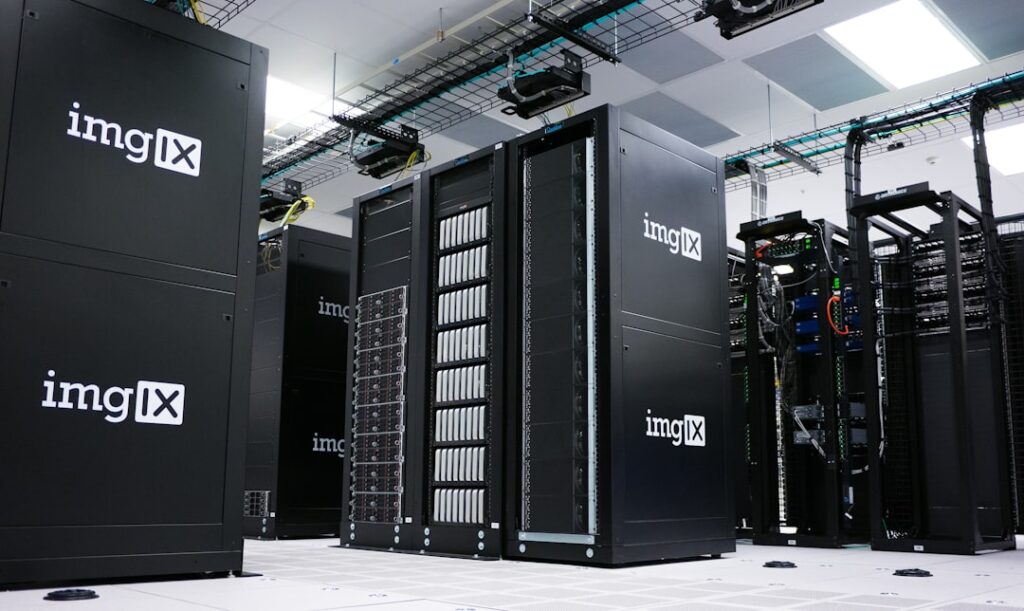
Your domain and hosting are the bedrock of your site. Get these right and every other decision gets easier. Rush them to save a few dollars and you may be paying more — in both money and time — by year two.
Choosing and Registering Your Domain Name
Your domain is your website’s address — the thing people type into a browser to find you. A standard .com domain is the most popular and trusted choice, typically costing $10 to $20 per year. Many hosting providers include a free domain for the first year as part of their package, which can help reduce day-one costs.
A few practical rules: keep it short, avoid hyphens, and choose a name you’d feel comfortable saying out loud. Don’t spend more than 30 minutes on this decision — a good enough domain beats a perfect domain that keeps you from launching.
Understanding Your Hosting Options
Hosting is where your site actually lives. WordPress hosting broadly falls into four categories with very different real-world trade-offs. Shared hosting puts your site on a server alongside hundreds or thousands of other sites, sharing resources like CPU, memory, and disk I/O — when a neighboring site spikes traffic or gets hacked, your site feels it.
Here’s a plain-language breakdown of your options:
Shared Hosting ($3–$15/month): The entry point for most beginners. Affordable, easy to set up, and sufficient for a new site with low traffic. Set realistic expectations at this tier — providers typically host your site on a shared server that’s used by hundreds of other websites. Great for: personal blogs, portfolio sites, early-stage business sites.
Managed WordPress Hosting ($20–$100/month): Premium WordPress hosting is specifically tuned for WordPress performance, security, and scalability, and typically includes automatic updates and backups — a key feature that saves hours of manual work and prevents your site from crashing. Great for: established small businesses, anyone who values reliability over cost.
VPS Hosting ($20–$80/month): A middle ground — your own virtual slice of a server. More control and resources than shared hosting, less cost than dedicated. Great for: growing sites, developers, anyone who’s outgrown shared hosting.
A critical gotcha to watch for — renewal pricing: Many hosts offer a low first-year deal, but the renewal cost can be double or even triple. Always check what the price becomes after the discount expires. The real first-year cost on popular shared plans is usually $3–$5/month — but renewal rates run $12–$18/month. That “cheap” plan you’re eyeing may not be cheap at all by year two. Always check the renewal rate before committing — if a provider buries it, that’s a red flag.
When evaluating any hosting plan, look beyond the headline price and check for these included features: SSL certificate (essential for security and SEO), automated daily backups, one-click WordPress installation, CDN availability, and quality customer support. Introductory prices often double at renewal, and SSL, backups, CDN, and malware scanning are frequently sold as add-ons.
Phase 2: Installing WordPress and Choosing Your First Theme
Once your hosting is live, installing WordPress takes about five minutes. Most reputable hosts offer a one-click WordPress installer through their control panel — look for it in your hosting dashboard under “WordPress” or “CMS.” Fill in your site name, admin email, and password, click install, and you’re in. The complexity most beginners fear here simply doesn’t exist with modern hosting.
Choosing Your First Theme (Without the Rabbit Hole)
Your theme controls how your site looks. With over 14,000 free themes available in the WordPress theme directory as of 2025, plus thousands of premium options, this is another area where decision paralysis sets in fast. Here’s how to cut through it.
Start lightweight. “Do-it-all” themes often come with extra code that slows your site down and makes simple edits frustrating. Lightweight themes are usually a better choice — they load faster, are easier to manage, and give you more control over how your site works.
Don’t judge by the demo. A very frequent mistake is choosing a theme based on how it looks on the demo. Experience shows that this is almost never a good decision — your website won’t look exactly like the demo content, and many such themes are heavily pre-customized and don’t give space for many adjustments.
For most beginners, a free theme like Astra, GeneratePress, or Kadence gives you a clean, fast canvas without bloat. These themes are actively maintained, have large communities, and work with virtually every major page builder. You can always upgrade to a premium theme later — but for launch day, “clean and fast” beats “fancy and slow.”
On premium theme pricing: The average price for premium themes is around $59, though many charge annual renewal fees for updates and support. If you do buy a premium theme, verify that what you’re paying includes a license for your specific number of sites and check whether support renewals are optional or mandatory.
Phase 3: Essential Plugins vs. Nice-to-Have Plugins

Plugins are where most beginners make their most expensive mistakes — not in dollars spent, but in site performance and maintenance burden. WordPress plugins are like apps for your website that let you add custom features and functionality, like contact forms and payment buttons, without writing a single line of code. The temptation is to install everything that looks useful. Resist it.
What’s more important than the overall number of plugins is what each plugin is doing. A site with 100 well-coded plugins could load faster than one with a single heavy, poorly optimized plugin — but it’s still a good idea to use as few plugins as possible. Every plugin you install needs to be maintained, updated, and checked for compatibility.
| Plugin Category | Essential (Install Day One) | Nice-to-Have (Add When Needed) | Skip for Now |
|---|---|---|---|
| SEO | Yoast SEO or Rank Math (free versions cover the fundamentals) | Yoast Premium ($99/year) for advanced redirects | Multiple SEO plugins — pick one |
| Security & Spam | Akismet Anti-Spam (free for personal use) | Wordfence or Sucuri for firewall protection | Multiple security plugins — conflicts are common |
| Backups | UpdraftPlus (free) — schedule daily backups to cloud storage | Paid backup service if your host doesn’t include one | Skipping backups entirely — never do this |
| Contact Forms | WPForms Lite (free) — drag-and-drop contact form | WPForms Pro ($39–$299/year) for multi-step forms | Collecting emails without a form |
| Performance/Caching | W3 Total Cache or LiteSpeed Cache (free) | WP Rocket (~$59/year) if you want premium performance | No caching plugin on shared hosting |
| Image Optimization | Smush or ShortPixel Adaptive Images (free tiers) | Paid image optimization for large media libraries | Uploading unoptimized full-size images |
| Analytics | Connect Google Analytics directly via Search Console | MonsterInsights for in-dashboard analytics reporting | Installing analytics before you have content to measure |
| E-commerce | WooCommerce (free core) if you’re selling products | Premium WooCommerce extensions as your store grows | Multiple e-commerce plugins — choose one ecosystem |
The ROI test for plugins: Before installing any paid plugin, ask whether it will save at least twice its annual cost in time, customer acquisition, or lost revenue. A $99/year SEO plugin that helps a $5,000 service business rank for one more keyword? Easy yes. A $79/year social sharing plugin for a site that doesn’t have consistent content yet? Probably not yet.
A note on plugin renewals: Many paid themes and plugins require annual renewals to ensure continued access to updates and support — this can add up, especially as your site evolves and requires more complex functionality. Build these renewals into your annual budget from day one. A tool that costs $49/year on purchase may feel cheap, but three or four of them add $150–$200/year to your ongoing operating costs.
Phase 4: Creating Your Core Pages and Content
A functioning WordPress site needs a clear content foundation before it’s ready to publish. “Done is better than perfect” applies especially here — most visitors don’t need 30 pages; they need to understand who you are, what you offer, and how to reach you.
The Five Core Pages Every Site Needs
Home: Your first impression. Should answer “what is this site/business?” within five seconds. Focus on clarity over creativity — a confused visitor leaves without converting.
About: For a business, this is where you build trust. For a blog or portfolio, it’s where you establish voice and credibility. Keep it human — readers connect with people, not brands.
Services or Products (or Blog): Whatever your core offering is, it needs its own dedicated page. Don’t bury it in your homepage copy. If you’re a content site, your blog archive page serves this role.
Contact: Every site needs a contact page with a working form. Install WPForms Lite and test it before you go live. A surprising number of sites have broken contact forms that the owner never catches.
Privacy Policy: Not optional. If you’re collecting any user data — including through analytics or contact forms — a privacy policy is a legal requirement in most jurisdictions. WordPress has a built-in privacy policy generator under Settings → Privacy.
Setting Up Your WordPress Reading Settings
After creating your homepage, go to Settings → Reading and set “Your homepage displays” to “A static page,” then select your Home page from the dropdown. This tells WordPress to show your homepage instead of a blog feed. It’s a small setting that a surprising number of new sites miss — and one that makes an immediate difference in how professional your site looks.
Also check Settings → Permalinks and select “Post name” as your URL structure. Clean URLs like yoursite.com/about are better for SEO and usability than the default yoursite.com/?p=123. Do this before you publish any content — changing it later can break links and hurt search rankings.
Hidden Costs and Renewal Pricing: What Most Guides Won’t Tell You
Most WordPress cost guides show you the lowest possible entry price and stop there. Here’s a more complete picture of what you’re actually signing up for — so none of it catches you off guard twelve months from now.
Most of the essentials around building a WordPress site — hosting, domains, and plugins — offer discounts for the first year, then renew at a higher rate. Always check renewal pricing before committing.
Domain renewal: Domain names can start as low as $0.99 for the first year, with annual renewal fees ranging from $10 to $20. That introductory rate won’t stick. Budget $15–$20/year for domain renewal going forward.
Hosting renewal: If you’re considering an entry-level hosting plan, be aware that your low introductory rate will likely balloon at renewal. It’s not uncommon for entry-level hosting renewal rates to triple in price. A plan advertised at $2.95/month may renew at $8.99–$12.95/month. The lowest monthly rates are almost always locked behind 2 or 3-year commitments — if you’re confident in your site’s longevity, this can save you 40–60% compared to annual renewals.
Premium theme renewal: Many premium themes charge annual fees for continued updates and support — often $39–$99/year. Skipping the renewal usually means you keep the theme but lose security patches and compatibility updates. That’s a real risk, not just a minor inconvenience.
Plugin renewal: If you purchase premium plugins, most charge annual renewal fees to access updates and support — and skipping these renewals may affect your website’s performance or security.
SSL certificate: Most reputable hosts include SSL for free now. SSL certificates authenticate a website’s identity and encrypt data, creating a secure HTTPS connection for visitors — while most providers offer this for free, some still charge entry-level customers for it. If your host charges extra for SSL, find a new host.
A realistic annual budget for a small business WordPress site on WordPress.org:
| Cost Item | Year 1 (Introductory) | Year 2+ (Renewal) |
|---|---|---|
| Domain name | $0–$15 (often free with hosting) | $10–$20/year |
| Shared hosting | $36–$60 (discounted annual) | $96–$216/year at renewal rates |
| Premium theme (optional) | $49–$99 one-time or annual | $39–$99/year for support/updates |
| Essential plugins (free tier) | $0 | $0 |
| Premium plugins (if needed) | $0–$200 | $100–$300/year |
| Total (lean setup) | ~$85–$175 | ~$120–$240/year |
For most solopreneurs and small businesses, a well-built WordPress site can be maintained for $150–$250 per year after the first year — that’s less than $25/month for a professional online presence. The key is knowing the renewal rates before you commit, not after your first invoice arrives.
Common Mistakes That Cost Beginners Time and Money

You’re going to make some mistakes building your first WordPress site — that’s inevitable and fine. But a few specific mistakes consistently cost beginners disproportionate amounts of time, money, and momentum. These are the ones worth knowing about in advance.
Choosing the Wrong Platform
As covered above, starting on WordPress.com when your goals require WordPress.org is the most common — and most expensive — beginner mistake. The decision between WordPress.com and WordPress.org significantly impacts your website’s potential, and selecting an inappropriate option might prevent growth, force additional expenses, and possibly require platform migration after your initial choice. Migration is possible, but it takes time and sometimes money. Start on the right platform.
Choosing Hosting Based on Price Alone
Good hosting boosts website speed, security, and performance. Conversely, bad hosting leads to frequent downtime, slow loading times, and security breaches. The cheapest plan that balloons on renewal isn’t actually cheap — and poor hosting performance directly affects your search rankings and visitor experience. Look for a host with transparent renewal pricing, good performance track record, and included backups.
Installing Too Many Plugins Too Soon
A mistake many people make is installing plugins without checking them out first. A bad plugin can slow down your site, cause conflicts with your theme or other plugins, or even have security issues — choosing plugins wisely is just as important as choosing your theme or hosting. Install only what you need to launch. You can always add more later, but removing poorly-performing plugins after the fact is much harder.
Picking a Theme Based on the Demo
A poorly chosen theme can slow your site down, create a poor user experience, and lack mobile responsiveness — and choosing a theme that doesn’t suit your needs can lead to issues as you build your site. Prioritize speed, active maintenance, and clean code over aesthetics. You can add your branding to a lean theme much more easily than you can fix performance problems baked into a bloated one.
Skipping Backups Until Something Goes Wrong
Security and regular backups are important for every website — if your site ever gets hacked, you risk losing valuable site and customer data, which could damage your reputation and be costly to fix. Install UpdraftPlus on day one. Configure it to back up weekly (daily if you publish frequently) to an external location like Google Drive or Dropbox. This is a 15-minute setup that can save you days of recovery work.
Skipping the Permalink and Reading Settings
Some mistakes, like choosing the wrong permalink structure, are much easier and safer to address before you launch — to avoid broken links or losing your search engine rankings. Set your permalink structure to “Post name” before you publish anything. Changing it later forces you to set up redirects from old URLs to new ones — a tedious but necessary task that most beginners don’t know how to handle.
Waiting for Perfect Before Launching
If you’re experiencing decision paralysis about your theme, your plugin stack, or your content — ship what you have. A live site with five pages and three plugins beats a private site with thirty pages and a perfect design that nobody can see. Your site will improve incrementally. What it can’t do is grow while it’s sitting in draft mode.
If you need hands-on guidance to get unstuck — whether on your hosting setup, plugin configuration, or site architecture — our team at WordPress AI Tools works with small businesses and solopreneurs at exactly this stage. We can help you make the right decisions for your specific situation, not generic best practices. Reach out when you’re ready — no pressure, no upsell, just practical guidance.
Frequently Asked Questions About Building WordPress Sites
Next Steps: From Launch to Growth
Getting your WordPress site live is the beginning, not the end. Once your five core pages are published and your essential plugins are running, your next priorities are: connecting Google Search Console so you can track search performance, submitting your sitemap (your SEO plugin generates this automatically), and publishing your first pieces of content consistently.
On the technical side, run a free speed test through Google PageSpeed Insights and Google’s Core Web Vitals report. These are your baseline. A site launching on quality shared hosting with a lightweight theme and optimized images should score reasonably well without advanced configuration. If it doesn’t, the report will tell you exactly what to fix.
On the content side, publish something — even if it’s not perfect. Search engines reward sites that publish consistently over time. Your first ten blog posts don’t need to be masterpieces; they need to exist and to answer real questions your audience is asking.
Security remains an ongoing concern — WordPress sites face significant attack volumes, and the vast majority of WordPress security vulnerabilities originate in plugins and themes rather than the core software. Keep everything updated. Set WordPress core, themes, and plugins to auto-update minor versions, and review major updates before applying them. This single habit prevents the majority of WordPress security incidents.
Building a WordPress site is one of the highest-ROI investments a small business or solopreneur can make — but only if you build it on the right foundation from day one. The decisions covered in this guide — platform choice, hosting with honest renewal pricing, a lean plugin stack, and a fast theme — are what separate sites that grow from sites that stall.
At WordPress AI Tools, we help small businesses and solopreneurs navigate exactly these decisions — from initial setup to ongoing optimization. If you’d like personalized guidance tailored to your specific goals and budget, contact WordPress AI Tools today. No generic advice, no pressure — just honest recommendations based on where you are and where you want to go.
Frequently Asked Questions
How long does it take to build a WordPress site as a beginner?
A basic WordPress site with five core pages can be live within a weekend — roughly 8 to 12 hours spread over two days. The setup (hosting, domain, WordPress installation) takes 1 to 2 hours. Choosing and customizing a theme takes 2 to 4 hours. Writing and publishing your core pages takes the most time, depending on how much content you have ready. Waiting for everything to be perfect is the most common reason sites take months instead of days.
Do I need to know how to code to build a WordPress site?
No. The majority of WordPress sites — including professional business sites — are built without any coding. The Gutenberg block editor lets you build pages visually by dragging and dropping content blocks. Page builder plugins like Elementor or Beaver Builder add even more visual design control. You only need to touch code if you want to make very specific custom modifications, and even then, most customizations can be handled through plugins or a child theme.
What is the real cost of running a WordPress site per year?
For a lean small business site on WordPress.org, budget $150 to $250 per year after the first year. This covers domain renewal ($10 to $20), hosting at renewal rates ($96 to $216 depending on your plan), and a handful of free plugins. If you add a premium theme ($39 to $99/year) and one or two paid plugins ($50 to $150/year combined), you’re looking at $250 to $500/year. The most important thing is to check renewal rates before signing up — introductory prices are often 50% to 70% lower than what you’ll pay from year two onward.
How many plugins should a new WordPress site have?
For a new site, aim for 5 to 10 plugins covering your essential needs: SEO, backups, spam protection, a contact form, and caching. The number matters less than the quality — a few well-coded plugins from reputable developers cause fewer problems than a dozen poorly-maintained ones. Add plugins only when you have a specific need they solve. Avoid installing plugins ‘just in case’ or because a guide recommended them without context for your type of site.
Can I switch from WordPress.com to WordPress.org later?
Yes, migration is possible — WordPress.com provides export tools, and most self-hosted hosts have import tools. However, migration requires time, some technical familiarity, and attention to detail to avoid broken links or lost content. If you have any plans to monetize your site, use custom plugins, or grow your audience, it’s significantly easier to start on WordPress.org (self-hosted) from the beginning than to migrate a site that’s already built and ranking in search results.

