

If you’ve spent an afternoon trying to figure out whether you actually need Elementor for your WordPress site, you’re not alone. The confusion usually isn’t about Elementor itself. It’s about information overload arriving before you’ve even decided what kind of site you’re building. This guide cuts through that. You’ll find honest answers about what Elementor does, what it costs (including the renewal price most tutorials bury), how it affects your site’s speed, and a clear framework for deciding whether it’s the right tool for your situation.
What Elementor WordPress Actually Is (And Whether You Need It)
Elementor is a visual drag-and-drop page builder plugin for WordPress. It replaces the default editing experience with a live canvas where you can see exactly how your page looks as you build it, without writing a single line of code. It powers millions of websites worldwide and allows beginners, freelancers, agencies, and businesses to create professional websites using a visual editor without coding.
The real question isn’t “what is Elementor?” It’s “do I actually need it?” And the honest answer depends on what you’re building.
You probably need Elementor if…
You’re building a multi-section landing page, a business homepage with a hero image, features grid, testimonials, and a contact form. You want pixel-level control over spacing, typography, and layout without paying a developer. Page builders like Elementor allow you to customize the page’s design in ways Gutenberg cannot, and unlike the block editor, Elementor creates the entire page as a standalone canvas rather than content that exists within your theme.
You probably don’t need Elementor if…
You’re building a simple blog, a personal portfolio with a clean theme, or any site where writing content is the primary activity. Gutenberg is a writing tool, tuned and optimized for creating rich text content using elements like headings, images, or lists. It’s genuinely great for writing blog posts. Adding Elementor on top of a simple content site adds overhead without adding meaningful value.
The larger point: Elementor is a tool with a specific job. Before installing it, decide whether that job actually needs doing on your site. For a full comparison of what’s available in the page builder space before committing, see our guide on the best WordPress page builders for beginners and small business owners.
Elementor Free vs. Pro: The Honest Cost Breakdown

A critical gotcha to watch for: all subscriptions renew at list price based on your billing cycle, not the discounted introductory rate. Many new users are surprised at renewal time. Here’s what you actually get at each tier.
| Feature | Elementor Free | Elementor Pro (Essential) | Elementor One |
|---|---|---|---|
| Drag-and-drop editor | Yes | Yes | Yes |
| Basic widgets (text, image, button, gallery) | Yes (~40) | Yes (90+) | Yes (90+) |
| Theme Builder (header, footer, archives) | No | Yes | Yes |
| Form Builder with integrations | No | Yes | Yes |
| WooCommerce widgets | No | Yes | Yes |
| Dynamic content / custom fields | No | Yes | Yes |
| AI-generated layouts, copy, images | No | No | Yes (credit-based) |
| Image optimization (WebP/AVIF) | No | No | Yes (credit-based) |
| Site accessibility tools | No | No | Yes |
| Priority customer support | No | Yes | Yes |
| Sites covered | 1 | 1 | 1–3 (plan-dependent) |
| Approx. annual cost | Free | ~$59/year | ~$14/month billed annually |
The free version of Elementor offers a wide range of design features, including drag-and-drop page building, responsive editing, and access to over 40 basic widgets. That’s genuinely useful for simple pages. The gap opens up the moment you want to control your site’s header and footer, build real lead-capture forms, or connect your design to dynamic content from your WordPress database.
The theme builder is arguably the Pro version’s most powerful feature. Unlike the free version, which only designs individual pages, the theme builder enables custom creation of headers, footers, and template layouts for entire WordPress websites. If your site needs a consistent branded header and footer that you control visually, that alone often justifies the upgrade.
On the Elementor One plan, the subscription centralizes creation, optimization, and management capabilities, including the Editor Pro, Agentic AI, Image Optimization, Email Deliverability, Web Accessibility, Site Management, and Cookie Consent, with additional capabilities consistently being added at no extra cost. One thing to understand about the credit system: you get a full new set of credits each month as your credit usage resets monthly, and unused credits don’t roll over. If you’re a light user, you may not exhaust your credits, which makes the bundled tools feel less valuable.
The honest trade-off: both versions serve different audiences. If you’re just starting out and need a simple site, Elementor Free is more than enough. However, if you want to unlock advanced customization, streamline your marketing, and reduce dependency on third-party plugins, Elementor Pro is a valuable upgrade.
One more gotcha on cost: the Elementor ecosystem includes third-party add-ons that extend functionality beyond what’s included in Pro, adding specialized widgets, dynamic content options, or integrations with specific services. Costs vary widely from $20 to $200+ depending on the add-on’s complexity. Budget for these if you go deep into the ecosystem.
Getting Started: Your First Elementor Page in Under 30 Minutes

Done is better than perfect. Your first Elementor page doesn’t need to be the finished version of your site. It needs to prove to yourself that the tool works and that you can use it. Here’s the fastest path to that outcome.
Step 1: Install Elementor (5 minutes)
From your WordPress dashboard, go to Plugins > Add New, search for “Elementor,” and install the free version. Activate it. You don’t need to connect an account or enter a license key for the free version.
Step 2: Create a new page and open the editor (2 minutes)
Go to Pages > Add New. Give it a title. Click the blue “Edit with Elementor” button. The Elementor editor loads in your browser. The left panel shows your widgets; the right side is your live canvas. What you see here is exactly what your visitors will see.
Step 3: Use a template instead of starting blank (5 minutes)
Click the folder icon in the toolbar to open the Template Library. Search for a template that matches your site type, whether that’s a landing page, about page, or service page. Import it with one click. This saves hours and immediately shows you what Elementor can do. You’re modifying something real, not building from nothing.
Step 4: Edit text, swap images, adjust colors (15 minutes)
Click any text element on the canvas and start typing. Click any image to replace it. The left panel updates to show the settings for whatever you’ve selected. Typography, spacing, and colors all live in the left panel under the Style tab of each element. Don’t try to redesign everything at once. Pick one section, get it right, and move on.
Step 5: Publish and check on mobile (3 minutes)
Click the green Publish button in the bottom left. Then click the responsive mode icons (tablet and phone) at the bottom of the editor to check how your layout looks on smaller screens. Elementor lets you adjust spacing and font sizes per device, so if something looks off on mobile, you can fix it without affecting the desktop version.
The 5 Most Useful Elementor Features for Beginners
Elementor ships with dozens of features, but beginners who try to learn everything at once end up using nothing well. These five are where to focus first.
1. Sections, Columns, and the Flexbox Container
Every Elementor layout is built on a structure of sections that contain columns, which contain widgets. Understanding this hierarchy is the single most important mental model in Elementor. Once you see it, everything clicks. Newer versions of Elementor also use “containers” based on CSS Flexbox, which give you more flexible layout control and produce cleaner code output.
2. The Global Widget and Global Colors/Fonts System
Before you start building pages, set your global colors and global fonts in Elementor > Site Settings. This takes ten minutes and saves hours. When you change a global color later, every element using that color updates automatically across your entire site. If you skip this and style each element manually, you’ll manually update dozens of elements every time you change your brand color.
3. The Template Library
Elementor’s template library includes page templates and section templates (called “blocks”). The section templates are especially useful: you can find a pre-built pricing table, testimonials section, or contact form block, import it into any page, and customize it. You’re assembling from tested pieces rather than designing from scratch.
4. Responsive Controls
Almost every setting in Elementor, from padding and font sizes to element visibility, can be set independently for desktop, tablet, and mobile. Click the screen-size icon next to any setting to reveal the per-device controls. This is how you fix “it looks fine on desktop but broken on mobile” without touching code.
5. The Navigator Panel
On complex pages, clicking the right element on the canvas gets frustrating fast. Open the Navigator (the layers icon in the bottom toolbar) to see a tree view of every section, column, and widget on your page. You can click directly in the Navigator to select elements, drag to reorder them, and rename them for easier reference. This is the feature most beginners discover too late.
Performance Reality Check: How Elementor Affects Your Site Speed
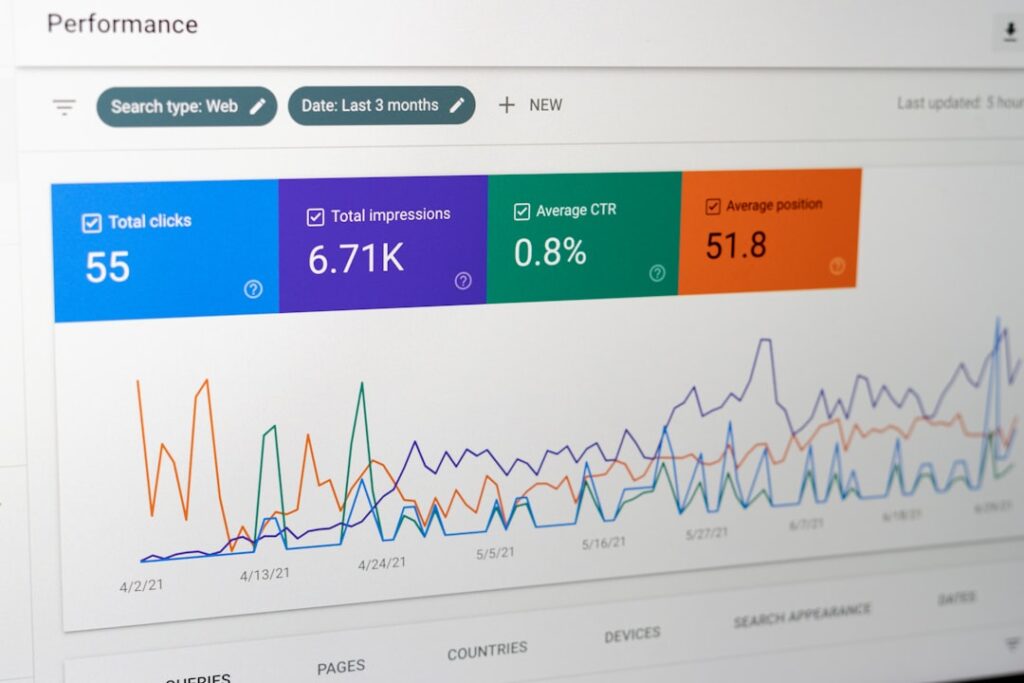
Elementor’s impact on performance is real, manageable, and highly dependent on how you use it. The builder itself is not the enemy. Poor configuration and plugin overload are the real culprits.
Elementor enhances WordPress with powerful visual editing capabilities, but this functionality introduces additional CSS, JavaScript, fonts, and DOM elements that can impact load times when left unoptimized. The platform isn’t inherently slow: performance issues typically stem from how it’s configured and the optimization strategies applied.
It’s true that Elementor adds more CSS and JavaScript than Gutenberg, but it usually only becomes a larger issue when you install even more Elementor add-on plugins and don’t properly optimize the site.
The hosting reality most guides skip
Elementor increases memory usage, which is why it’s not recommended on shared hosting. This is a significant gotcha for beginners who install Elementor on entry-level shared hosting plans. Elementor recommends 768 MB of PHP memory for best performance. Most budget shared hosting plans allocate 128-256 MB by default. If your site feels sluggish in the editor or on the frontend, check your memory limit before blaming Elementor. See our guide on how to choose the right web host for your specific situation for help making that call.
The real performance numbers
As of mid-2025, only 44% of WordPress sites on mobile devices pass all three Core Web Vitals tests. That’s the baseline, regardless of page builder. Gutenberg wins every performance metric by a wide margin because it generates clean, minimal HTML with no proprietary framework overhead. Among visual builders, Beaver Builder and Elementor deliver reasonable performance when optimized.
The key phrase is “when optimized.” Optimizing an Elementor site requires intentional choices:
Enable Elementor’s built-in performance features. Go to Elementor > Settings > Performance and enable “Optimized Control Loading” and “Inline Font Icons.” These settings, which are sometimes listed under Elementor’s Experiments tab, reduce unnecessary asset loading and produce leaner output code.
Use Flexbox Containers, not legacy sections. Elementor generates multiple wrappers per widget in legacy mode, and a simple layout with 50+ widgets can produce an enormous DOM. Flexbox containers reduce nested divs significantly.
Keep third-party add-ons minimal. Using too many additional plugins is often the primary reason performance scores stay poor. Every new plugin for a minor feature increases the server workload processed at all times. Strict curation of installed tools is essential.
Pair Elementor with a caching plugin. WP Rocket, LiteSpeed Cache, or W3 Total Cache all help dramatically. Elementor’s own image optimization (available in the One plan) handles WebP and AVIF conversion if you’d prefer to keep it in one tool.
Common Elementor Mistakes (And How to Avoid Them)
Most Elementor frustration traces back to a handful of predictable mistakes. Here are the ones that trip up beginners most often, along with how to sidestep them from day one.
Mistake 1: Not setting global styles first
Building pages before configuring global colors and fonts in Site Settings means every element gets styled manually and inconsistently. When you want to change your primary blue to a slightly different shade, you’ll touch every button on every page. Set your design system first, then build.
Mistake 2: Installing every Elementor add-on pack you find
There are dozens of Elementor add-on plugins promising “300 extra widgets.” Installing them all feels like adding power. It actually adds JavaScript, CSS, and potential conflicts. Start with Elementor’s native widget set. Add a third-party pack only when you identify a specific widget you need that isn’t available natively.
Mistake 3: Building on shared hosting with low memory limits
As noted above, Elementor needs adequate server resources. If the editor is slow, pages are crashing on save, or the frontend is sluggish, check your PHP memory limit and hosting tier before assuming something is wrong with Elementor itself.
Mistake 4: Mixing Elementor and theme page builders
Some premium themes include their own built-in page builder (often WPBakery). Activating Elementor on top of a theme that has its own page builder creates duplicate asset loading and potential conflicts. Use one page builder at a time. If your theme came with a builder you don’t want, switch to a lightweight theme designed to work with Elementor, such as Hello Elementor (Elementor’s own free theme) or Astra.
Mistake 5: Forgetting that removing Elementor leaves behind shortcodes
This is the lock-in risk most tutorials skip entirely. If you build a site with Elementor and later deactivate the plugin, your page content doesn’t cleanly revert to text. The visual layout breaks and you’re left with raw code markup in your content editor. This isn’t unique to Elementor, but it’s a real switching cost. Before committing, understand that rebuilding the site in a different tool later requires genuine effort. Switching page builders may take considerable time, and you’ll likely lose styling and face compatibility issues.
Mistake 6: Ignoring mobile until the end
Building the perfect desktop layout and then discovering it’s broken on mobile at the end of the process means going back through every section. Check mobile view after building each major section, not after you’re done. It’s three clicks to switch to mobile preview and saves significant rework.
Elementor vs. Gutenberg vs. Other Page Builders: A Decision Framework
The honest answer to “which page builder should I use?” depends entirely on your specific situation, not on which tool has the longest feature list. Use this framework to make a defensible choice rather than a coin flip.
| Your Situation | Best Choice | Why |
|---|---|---|
| Simple blog or content site | Gutenberg (built-in) | Zero cost, zero overhead, optimized for writing. No plugin needed. |
| Business homepage with custom sections | Elementor Free or Pro | Visual control, live preview, huge template library. Best ecosystem for non-developers. |
| E-commerce store with custom product layouts | Elementor Pro | WooCommerce widgets and theme builder let you control every template visually. |
| Agency managing many client sites | Elementor Pro (Expert/Agency) or Divi | Divi’s unlimited site license is attractive for agencies managing many client sites, but Elementor’s ecosystem is larger. |
| Performance-critical site, developer comfort | Beaver Builder or Bricks | Beaver Builder prioritizes reliability over feature count. Its conservative development approach means fewer breaking changes, cleaner output code, and simpler debugging. |
| Budget is zero, willing to learn | Gutenberg + free block plugins | Gutenberg’s zero cost makes it compelling when paired with free block plugins. |
The Gutenberg vs. Elementor trade-off in plain language
The block editor is faster and easier to use, enhanced by add-ons like Spectra. Elementor excels in advanced design control. If you need pixel-level control over your layout and want a live visual preview, Elementor wins. If you primarily write content and want the leanest possible setup, Gutenberg wins. These aren’t competing answers. They’re answers to different questions.
The Divi comparison
Elementor is a more beginner-friendly page builder than Divi. Elementor is a no-code page builder, so there is no need for coding knowledge to create web pages. Divi has a larger template library (with Divi you get around 200 layout packs containing about 2,000 premade templates, significantly higher than Elementor), but its interface has a steeper adjustment curve. Elementor offers a free version, which is free for a lifetime. Divi does not offer a free version or any free trial. For most beginners, being able to try before committing financially is a meaningful advantage for Elementor.
For a deeper dive into all your options, including Bricks Builder and WPBakery, our full comparison of the best WordPress page builders for beginners and small business owners covers each one honestly.
Frequently Asked Questions About Elementor
Here are the questions that come up most often when people are evaluating Elementor for the first time.
Next Steps: Getting Personalized Help
The decision framework above covers the majority of situations, but WordPress sites are rarely cookie-cutter. You might be migrating from an existing site, dealing with a specific theme compatibility issue, or trying to figure out whether Elementor Pro’s AI tools are worth it for your particular workflow. Those nuances don’t resolve cleanly in a guide.
It also helps to understand how Elementor fits into your broader WordPress setup. Understanding WordPress as a CMS can give you context for how the page builder layer relates to your content management approach and whether you’re setting things up in a way that will scale.
If you’re not sure which setup fits your specific WordPress situation, the team at WordPress AI Tools can help. No pressure, no generic advice, just a straight conversation about what actually fits your workflow, budget, and the site you’re trying to build. Reach out any time and we’ll point you in the right direction.
Frequently Asked Questions
Is Elementor free to use on WordPress?
Yes, Elementor has a permanently free version available on WordPress.org that includes a drag-and-drop editor and over 40 basic widgets. The free version is sufficient for building simple pages and testing the tool before committing to a paid plan. Elementor Pro and Elementor One are paid annual subscriptions that unlock the theme builder, form builder, WooCommerce widgets, and advanced features.
Does Elementor slow down your WordPress site?
Elementor adds more CSS and JavaScript than WordPress’s built-in Gutenberg editor, which can affect site speed if left unoptimized. However, performance issues are typically caused by poor configuration, inadequate hosting, or too many Elementor add-on plugins, rather than Elementor itself. Enabling Elementor’s built-in performance settings, using Flexbox containers, and pairing it with a caching plugin allows well-configured Elementor sites to achieve strong PageSpeed scores.
Can I switch away from Elementor later without losing my content?
Switching away from Elementor is possible but requires real work. Elementor stores layouts in its own format, so deactivating the plugin will break your visual page designs and leave behind code markup rather than clean content. Your written text and images remain in your database, but you’ll need to rebuild page layouts in a new tool. Factor this switching cost in before committing Elementor to a large site.
What hosting do I need to run Elementor well?
Elementor recommends at least 768 MB of PHP memory for best performance. Most budget shared hosting plans allocate 128-256 MB by default, which can cause the editor to run slowly or pages to fail on save. Managed WordPress hosting or a VPS with configurable PHP memory limits will produce a significantly better experience than entry-level shared hosting.
Do I need Elementor Pro or is the free version enough?
The free version is enough if you only need to design individual pages without controlling your site’s header, footer, or archive layouts. You need Pro if you want to build custom theme templates, collect leads with built-in forms, use WooCommerce design widgets, or work with dynamic content and custom fields. Most beginners with a simple site can start with the free version and upgrade only when they hit a specific limitation.

