
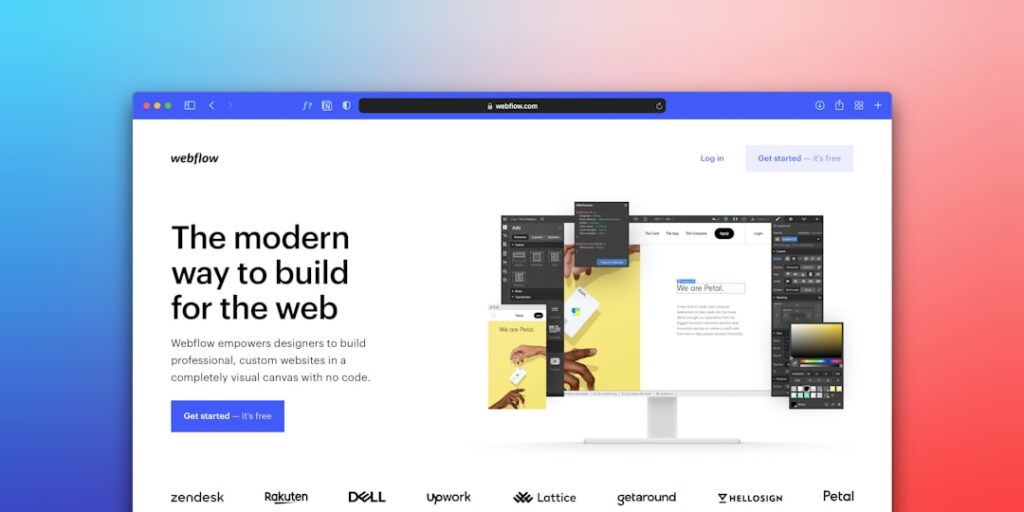
A WordPress web builder is a drag-and-drop tool — either built into WordPress or installed as a plugin — that lets you design professional websites visually, without writing a single line of code. If you’re feeling overwhelmed by the sheer number of options available, you’re not alone. This guide from WordPress AI Tools breaks down the top builders, their real costs, and a practical framework for choosing the right one for your project.
WordPress powers over 43% of all websites on the internet, making it the most widely used content management system in the world. A significant reason for that dominance? Page builders have made it possible for anyone — from first-time bloggers to agency owners managing dozens of client sites — to create polished, responsive websites without hiring a developer.
What Is a WordPress Web Builder?
A WordPress web builder is a visual design tool that replaces manual coding with an intuitive drag-and-drop interface. Think of it like furnishing an apartment: instead of building every piece of furniture from raw lumber (writing HTML and CSS), you’re selecting pre-made pieces and arranging them exactly how you want. The result looks custom, but you didn’t need a carpentry degree to get there.
WordPress web builders come in two main forms. The first is the native Gutenberg Block Editor, which has been built into WordPress core since version 5.0 in December 2018. It uses a block-based approach where every piece of content — paragraphs, images, buttons, columns — is an individual block you can arrange and style. It’s free, lightweight, and continually updated by the WordPress community.
The second form consists of third-party page builder plugins like Elementor, Divi, and Beaver Builder. These are installed on top of WordPress and provide their own visual editing interfaces, typically with larger template libraries, more design modules, advanced animation systems, and true front-end editing where you see exactly what visitors will see as you build.
Here’s the key distinction: Gutenberg prioritizes performance, portability, and core WordPress integration. If you deactivate it, your content remains as standard HTML. Third-party page builders prioritize design range, template variety, and visual editing power — but deactivating them can break layouts and leave behind proprietary markup that needs rebuilding. That trade-off matters, and understanding it upfront will save you from painful migrations later.
Top WordPress Web Builders Compared
Rather than an exhaustive feature dump, here’s a focused comparison of the four most widely used WordPress web builders, evaluated on the criteria that actually matter: ease of use, real cost, design flexibility, and performance impact. Always check the renewal rate before committing — introductory pricing can be misleading.
| Builder | Starting Price | Free Version | Best For | Learning Curve | Performance Impact |
|---|---|---|---|---|---|
| Gutenberg (Block Editor) | Free (built-in) | Yes — it’s the default editor | Bloggers, content-focused sites, performance-first builds | Low | Minimal — outputs clean, lightweight code |
| Elementor | $59/year (Essential) | Yes — basic editor with 40+ widgets | Beginners wanting visual design power; freelancers building client sites | Low to Medium | Moderate — adds 200–400KB depending on widget usage |
| Divi (Elegant Themes) | $89/year or $249 lifetime | No | Agencies and power users wanting an all-in-one design system with A/B testing | Medium | Moderate — improved significantly with Divi 5 |
| Beaver Builder | $99/year (Standard) | Yes — lite version on WordPress.org | Developers and agencies prioritizing clean code and stability | Low | Low — produces the cleanest markup among major builders |
Elementor: The Most Popular Choice
Elementor is the most popular WordPress page builder plugin, used on millions of websites. Its free version includes over 40 widgets and a functional drag-and-drop editor, making it an accessible entry point for beginners. Elementor Pro plans scale from $59/year for a single site up to $399/year for up to 1,000 sites — a structure designed for everyone from solo site owners to large agencies.
All Pro plans include the same core features: Theme Builder, Popup Builder, WooCommerce Builder, Form Builder, and 100+ Pro widgets. The differences between plans show up in site activation limits and support tiers, not in whether those features exist. A critical gotcha to watch for: Elementor removed the lifetime license option in 2022, so ongoing annual costs are now unavoidable with official licenses.
Divi: The All-in-One Design System
Divi from Elegant Themes is more than a page builder — it’s a complete design system that blends theme and builder into one package. For $89/year, you get the Divi theme, Divi Builder plugin, Extra theme, and premium plugins like Bloom (email optins) and Monarch (social sharing). That’s significantly more bundled value than most competitors offer at the same price point.
The standout differentiator is Divi’s $249 lifetime access option. For agencies or anyone committed to a long-term WordPress workflow, this eliminates recurring costs entirely. Divi also includes built-in A/B testing through Divi Leads, a feature most other builders require a separate paid add-on to match. The trade-off? Divi has a steeper learning curve due to its abundance of options, and its shortcode-based architecture makes switching away from it more difficult than with some competitors.
Beaver Builder: Stability and Clean Code
Beaver Builder takes a deliberately minimalist approach. It does less than Elementor or Divi — on purpose — to do what it does more reliably. It produces the cleanest HTML markup among the major page builders, which translates to better page load times and fewer compatibility headaches.
The standard plan starts at $99/year, but if you need full theme-building capabilities comparable to what Elementor and Divi include in their base plans, you’ll need the Beaver Themer add-on, which pushes costs considerably higher. Beaver Builder does offer a renewal discount of up to 40%, which softens the long-term cost. For agencies managing client sites, the clean hand-off experience and Client Editor Mode are genuine advantages you won’t find in most competing builders.
Gutenberg Block Editor: The Native Option
Don’t overlook what’s already built into WordPress. The Gutenberg Block Editor is free, integrated into WordPress core, and continues to close the design gap with third-party builders in each new release. It outputs cleaner, more lightweight code — meaning a design built with Gutenberg will typically load faster than the same design made with a page builder.
Where Gutenberg falls short is in advanced visual editing: it doesn’t yet offer the same true front-end drag-and-drop experience, the same volume of pre-made templates, or the granular breakpoint controls that mature page builders provide. But if your site is content-focused — a blog, a portfolio, a small business brochure site — Gutenberg paired with a modern block theme may be all you need, at zero additional cost.
How to Choose the Right WordPress Builder for Your Needs

The right WordPress web builder depends on three factors: your skill level, your budget, and the complexity of the site you’re building. Not the one with the most features — the one that matches your actual workflow. Here’s a phased approach to making the decision without wasting money on a tool that doesn’t fit.
Phase 1: Define Your Primary Need
Ask yourself what you’re actually building. A personal blog with standard layouts? Gutenberg is likely sufficient. A business site with custom landing pages and lead capture forms? Elementor or Divi will serve you better. An agency managing 20+ client sites where code quality and hand-off experience matter? Beaver Builder deserves serious consideration.
Phase 2: Test the Free Tier
Both Elementor and Beaver Builder offer free versions you can install directly from the WordPress plugin directory. Spend a weekend building a test page with each. Pay attention to how the editing experience feels, not just how the final result looks. A tool that frustrates you during a test run will frustrate you tenfold when you’re building under a deadline.
Divi doesn’t offer a free plugin version, but Elegant Themes provides online demos and a 30-day money-back guarantee on all purchases, giving you a risk-free evaluation window.
Phase 3: Calculate the True Cost
A tool needs to save at least twice its monthly cost in time to justify the expense. Here’s how to think about real cost:
Elementor: $59/year for one site. Budget for hosting ($5–30/month), domain ($10–15/year), and potential premium add-ons on top of that. Renewal is at the same annual rate — no surprise price jumps, but no discount either.
Divi: $89/year or $249 one-time for lifetime access. If you plan to use it beyond three years, the lifetime option pays for itself. You also get multiple themes and plugins bundled in.
Beaver Builder: $99/year at standard tier, with a 40% renewal discount after the first year, dropping it to roughly $59/year ongoing. Add Beaver Themer ($147/year) if you need full site design capabilities.
Gutenberg: $0. The only costs are hosting and your domain name. If budget is your primary constraint, start here.
If you’re managing this process and need personalized guidance for your specific WordPress setup, our team at WordPress AI Tools can help you evaluate which builder aligns best with your goals and budget.
Getting Started with Your WordPress Web Builder

Once you’ve chosen a builder, the path from installation to a live site follows a predictable sequence. Here’s a step-by-step framework that works regardless of which WordPress web builder you select. Your first site doesn’t need to be perfect — it needs to exist.
Step 1: Set Up WordPress and Hosting
Before you touch any builder, you need a WordPress installation running on a reliable host. Choose a hosting provider that offers one-click WordPress installation, automatic updates, and an SSL certificate. Expect to pay $5–30/month for quality shared or managed hosting. Avoid making a decision solely on the cheapest introductory rate — always check what the renewal price will be after the first term ends.
Step 2: Install Your Chosen Builder
For Gutenberg, you’re already set — it’s the default editor. For Elementor or Beaver Builder, navigate to Plugins → Add New in your WordPress dashboard, search for the builder by name, and click Install. For the Pro versions, upload the plugin ZIP file you receive after purchase. Divi requires downloading from the Elegant Themes member area and uploading via Appearance → Themes (if using the Divi theme) or Plugins → Add New (if using the standalone builder plugin).
Step 3: Start with a Template, Not a Blank Canvas
Every major builder includes a library of pre-designed templates. Use them. Starting from scratch sounds appealing, but it’s the fastest path to decision paralysis. Pick a template that’s close to what you want, then customize it: swap in your logo, update the color scheme, replace placeholder text with your own content. This approach gets you to a professional-looking site in hours rather than weeks.
Step 4: Build Your Core Pages
Focus on the pages that matter most first: your homepage, about page, services or product page, and contact page. Resist the urge to build everything at once. Launch with four to six solid pages, then expand as you get comfortable with the builder. Every page should be mobile-responsive — all modern WordPress builders handle this automatically, but always preview on mobile before publishing.
Step 5: Optimize and Launch
Before going live, run your site through Google PageSpeed Insights. If load times are slow, check whether you’ve added too many widgets, oversized images, or unnecessary plugins. Install a caching plugin, compress your images, and remove any unused page builder elements. Then hit publish — you can always iterate and improve after launch.
WordPress Builder vs. Traditional Coding
Page builders are productivity multipliers, not replacements for coding expertise. If you’re debating between using a WordPress web builder and hiring a developer to hand-code your site, the answer depends on your project’s complexity, your timeline, and your budget.
When a Builder Is the Right Choice
Use a WordPress web builder when you need a professional site quickly and affordably. For small business sites, portfolios, blogs, landing pages, and standard e-commerce stores, builders deliver 90% of what a custom-coded site offers at a fraction of the time and cost. Most small business owners don’t need pixel-perfect custom code — they need a clean, fast, mobile-responsive site that converts visitors into customers.
When Custom Code Makes More Sense
Custom development outperforms builders in three specific scenarios: when site performance is critical and every millisecond of load time matters (think high-traffic media sites), when you need complex functionality that no plugin can replicate, or when long-term maintainability is a priority for a large organization that will employ different developers over time. Page builders add overhead compared to custom development — Beaver Builder just adds less of it than most.
The Hybrid Approach
Many experienced WordPress users take a hybrid approach: they use the Gutenberg block editor for standard content pages and blog posts (where performance matters most) and deploy a page builder selectively for key marketing pages, landing pages, and complex layouts where visual design control is worth the slight performance trade-off. This keeps your site lean where it counts while giving you design power where you need it.
Frequently Asked Questions
Start Building Your WordPress Site Today
Choosing a WordPress web builder doesn’t have to be a high-stakes decision. Start with one tool, test it on a real project, and adjust course if needed. If you’re a beginner building your first site, Elementor’s free version or the built-in Gutenberg editor are both excellent starting points that cost you nothing. If you’re an agency evaluating builders for client work, invest a week testing Divi and Beaver Builder side by side on a staging site before committing.
The best WordPress web builder is the one that matches your current needs without locking you into a workflow you’ll outgrow. Remember: you can always upgrade or switch tools later. What matters most is getting your site live and working for your business.
Explore our in-depth reviews and guides at WordPress AI Tools to find the builder that matches your specific needs and budget. If you need personalized guidance tailored to your WordPress setup, contact WordPress AI Tools today — we’re here to help you make informed decisions without the hype.

