

If you’ve been staring at a blank WordPress dashboard with twenty browser tabs open and the nagging feeling that you’ve already made a wrong decision somewhere, you’re not alone. Searching “wordpress for dummies” is actually a smart move. It means you’ve cut through the ego and admitted you need plain language instead of jargon. That’s the right starting point, and this guide honors it. No assumed knowledge, no condescension, no feature lists masquerading as advice. Just the core concepts you need to go from confused to confident, explained the way a patient friend would explain them over coffee.
WordPress powers roughly 43% of all websites on the internet. That number matters for one reason: the learning curve you’re facing right now has been climbed by millions of people who started exactly where you are. The platform isn’t as complicated as it looks. It just uses unfamiliar words for familiar ideas. Once those words click, everything else follows.
What WordPress Actually Is (And What It Isn’t)
WordPress is a content management system, which is a fancy way of saying it’s software that lets you build and update a website without writing code. You install it on a web server, log in through your browser, and use a visual interface to create pages, publish articles, upload images, and change how everything looks. That’s the whole concept.
The confusion starts immediately because there are two versions of WordPress, and their names are almost identical. Understanding this distinction is the first real decision you’ll make, and it trips up nearly every beginner.
WordPress.org: The Self-Hosted Version
WordPress.org is free, open-source software you download and install on hosting you pay for separately. You get complete control: every theme, every plugin, every customization option, every line of code. This is what people mean when they say “I built a WordPress site.” It’s what this guide covers, and it’s the version that gives you real ownership and flexibility.
WordPress.com: The Hosted Version
WordPress.com is a hosted service where a company called Automattic handles your hosting, updates, and security for you. The trade-off is that on lower-tier plans, you face restrictions on which plugins and themes you can use, whether you can monetize your site, and how much you can customize the design. It’s simpler to start with, but the limitations become real constraints if your site grows.
The short rule: if you want full control and true ownership, use WordPress.org. If you want something managed with fewer setup decisions and can accept platform limitations, WordPress.com works for low-stakes personal projects. Most serious sites use the self-hosted version, and the rest of this guide assumes that’s what you’re working with.
The House Analogy (Keep This One Handy)
Here’s a mental model that makes every other concept in WordPress easier to understand. Think of your website as a house:
- Hosting is the land your house sits on. You rent it from a hosting company.
- Your domain name (yoursite.com) is the street address.
- WordPress itself is the frame and foundation of the house.
- Your theme is the exterior and interior design: the paint, the flooring, the layout of the rooms.
- Plugins are appliances and utilities: the dishwasher, the thermostat, the security system.
- Pages and posts are the furniture and decorations inside.
You don’t build any of these from scratch. You assemble pieces that other people have already built and tested. Your job is knowing which pieces you need and in what order to put them together.
The WordPress Dashboard: A Plain-English Tour
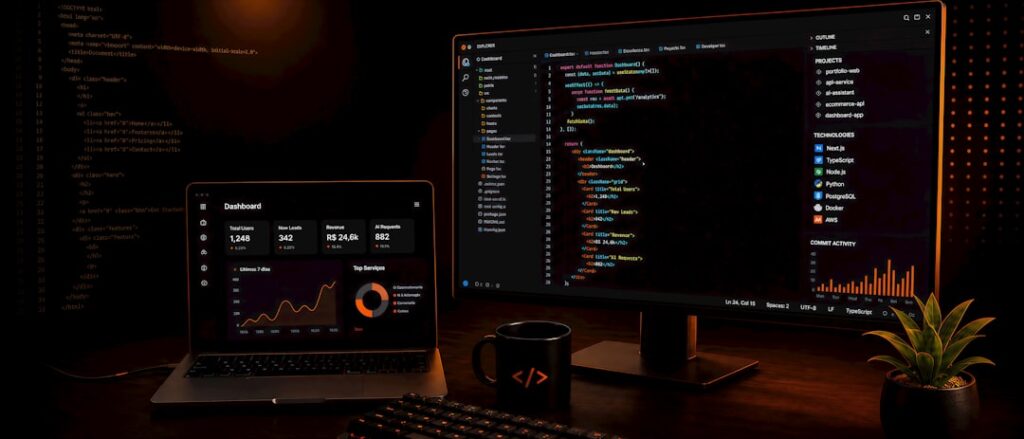
The dashboard is the control panel you see after logging in at yoursite.com/wp-admin. It looks busy on first visit because there are a lot of menu items in the left sidebar. Here’s the honest truth: as a beginner, 90% of what you’ll do lives in five places. Ignore the rest until you need it.
The Five Menus That Matter
Posts: This is where you write blog articles. Each post has a publish date, can be sorted into categories, and appears in your blog feed in reverse chronological order. If you’re publishing news, tutorials, or any regularly updated content, this is where it lives.
Pages: This is where you create static content that doesn’t change often. Your Home page, About page, Contact page, and Services page are all Pages. They don’t have categories or publish dates. They’re linked from your navigation menu.
Appearance: This is where you control how your site looks. You’ll find your theme settings here, along with options to customize colors, fonts, header layout, and menus. The Themes submenu is where you activate or switch themes, and Customize lets you tweak your active theme’s settings in a live preview.
Plugins: This is where you install, activate, deactivate, and update plugins. Think of it as your appliance store. You browse, install what you need, and remove what you don’t.
Settings: This is where you configure the basics that affect your entire site. Site title, tagline, timezone, permalink structure (how your URLs look), reading settings (what shows on your homepage), and more. Spend ten minutes here right after installation and you’ll save yourself headaches later.
The First Settings to Configure
Before you touch themes or plugins, handle these four things inside Settings:
- Permalinks: Go to Settings, then Permalinks, and choose “Post name.” This gives you clean URLs like yoursite.com/blog-post-title instead of yoursite.com/?p=123. Do this before you publish anything, because changing it later can break existing links.
- Site title and tagline: Go to Settings, then General. Set a clear title. Delete the default tagline “Just another WordPress site,” which sometimes shows up in browser tabs and search results.
- Timezone: Still in General settings, set your timezone. This affects when scheduled posts go live and when backup timestamps are recorded.
- Delete default content: WordPress ships with a “Hello World” sample post, a “Sample Page,” and a default comment. Delete all of them before you start building.
Pages vs. Posts vs. Plugins: The Big Three Explained
These three concepts are the foundation of everything you’ll do in WordPress. Getting them straight early prevents the most common beginner confusion. Here’s the plain-language version, including a key fourth concept, themes, that belongs in the same conversation.
Pages: Your Static Content
Pages are permanent, timeless content. Think of them as the rooms in your house: the kitchen, the living room, the office. They exist in a fixed location, they don’t have publish dates, and they’re linked from your navigation menu. Your Home page, About page, Contact page, and Services page are all Pages. You create them once, update them occasionally, and they stay where visitors expect to find them.
Posts: Your Dated Content
Posts are articles with publish dates. They flow into your blog feed in reverse chronological order, meaning the newest one appears first. Posts can be organized into categories and tagged with keywords. If you’re writing tutorials, sharing news, publishing recipes, or posting any content that arrives on a schedule, those are Posts. Think of them as the newspaper that gets delivered to your house each morning: fresh, dated, and filed into sections.
Plugins: Your Site’s Functionality
Plugins are add-on software packages that give your site capabilities it doesn’t have out of the box. WordPress alone doesn’t include a contact form, an SEO tool, or a backup system. Plugins fill those gaps. There are over 60,000 free plugins in the official WordPress repository, plus thousands more premium options.
The critical discipline: install only what you need on day one. Every plugin adds code that runs on every page load, which affects performance. More importantly, plugins are the source of roughly 91% of WordPress security vulnerabilities. A lean plugin set that does exactly what you need is faster, more secure, and easier to maintain than a sprawling collection of overlapping tools.
Themes: Your Site’s Appearance
Your theme controls the visual design of your site: layout, colors, fonts, header style, and how content is arranged. There are over 13,000 free themes in the WordPress directory. That abundance is both a strength and a source of paralysis. A simple decision framework narrows the field fast so you’re not scrolling through themes for three days.
Quick Comparison: Pages, Posts, Plugins, Themes
| Concept | What It Does | Real-World Analogy | Key Trade-Off |
|---|---|---|---|
| Pages | Static, permanent content | Rooms in your house | Not designed for frequent updates; use for content that stays put |
| Posts | Dated, categorized articles | Newspaper delivered daily | Requires consistent publishing to be useful; old posts can feel stale |
| Plugins | Add functionality | Appliances and utilities | Each one adds code weight and security surface; keep the list lean |
| Themes | Control visual design | Exterior and interior decor | Heavy themes slow your site; switching themes means rethinking layout |
Your First WordPress Site: A Phased Action Plan
The biggest enemy isn’t technical difficulty. It’s the paralysis that comes from too many options and not enough prioritization. This action plan breaks the work into phases so you always know what to do next. Move through them in order, and don’t skip ahead. Each phase builds on the one before it.
Phase 1: Get Hosting and a Domain
Hosting is the server space where your website lives. A domain is your web address (yoursite.com). Most hosting providers offer both, and many include a one-click WordPress installer in their dashboard.
A critical gotcha: the price advertised on almost every major hosting company’s homepage is an introductory promotional rate, not what you’ll pay after year one. A plan sold at $2.99/month might renew at $11.99 or more. Budget for the renewal rate, not the promo rate. Our guide to building a WordPress site from scratch walks through this in more detail, including the renewal pricing trap and how to avoid it.
For a brand-new site with modest traffic, shared hosting at $5 to $15 per month (after promotional pricing ends) is a perfectly reasonable starting point. You can always upgrade later.
Phase 2: Install WordPress
This is genuinely one of the easiest parts of the whole process. Almost every hosting provider includes a one-click installer. Log in to your hosting dashboard, look for “WordPress Installer” or “Softaculous” or “Install WordPress,” select your domain, set an admin username (never use “admin,” it’s the most targeted username for attacks), set a strong password, and click install. Most installations complete in under two minutes.
Phase 3: Pick a Theme
Start free. A well-maintained free theme is better than a poorly supported premium one. Look for themes updated within the last six months with positive reviews and a healthy number of active installs. Lightweight, speed-optimized themes like Astra or GeneratePress are excellent starting points. They’re clean, fast, and actively maintained.
The biggest time-sink for beginners is theme paralysis: spending more time testing themes than it would take to just pick one and start creating content. You can change your theme later. Your content is what matters. Pick one, move on.
Phase 4: Install Five Essential Plugins
Install only what you need on day one. Here are the five categories every new site needs:
- SEO plugin: Yoast SEO or Rank Math. Pick one, not both.
- Security plugin: Wordfence (free tier is solid) or Sucuri.
- Backup plugin: UpdraftPlus (free). Configure automatic backups to off-site storage like Google Drive or Dropbox.
- Caching plugin: WP Super Cache (free, simple) or W3 Total Cache (free, more options). Check if your host provides server-level caching first.
- Contact form plugin: WPForms Lite or Contact Form 7.
That’s it for day one. Skip the social sharing plugins, the popup plugins, the analytics dashboards, and everything else until you have a specific need. A lean plugin set is faster, more secure, and easier to troubleshoot.
Phase 5: Build Your Core Pages
Create these four pages before anything else:
- Home: Go to Settings, then Reading, and set a static page as your homepage if you want a custom landing page rather than a blog feed.
- About: Who you are, who you serve, and why you do what you do. Often the second-most visited page on a new site.
- Contact: Drop your contact form here. Link it from your main navigation menu.
- Privacy Policy: Required if you collect any user data. WordPress includes a Privacy Policy generator under Settings, then Privacy.
Phase 6: Publish Your First Post
The WordPress block editor (called Gutenberg) builds pages and posts out of individual blocks: paragraph blocks, heading blocks, image blocks, button blocks. Click the “+” icon to add a block. Click any existing block to edit it. It takes about 20 to 30 minutes of clicking around before it starts feeling intuitive. That’s not a flaw, it’s just a learning curve. Stick with it before reaching for a page builder plugin. Most of what beginners think they need a page builder for can be done natively with the block editor.
Done is better than perfect. Publish something real, gather feedback, and improve. That cycle is how every skilled WordPress user you admire got where they are.
Common Beginner Mistakes and How to Skip Them
These mistakes show up consistently across beginners of every background. They’re all preventable with a bit of forewarning. Here they are, in roughly the order you’ll encounter them.
Mistake 1: Installing Too Many Plugins
Every plugin adds code that runs on every page load and adds potential security exposure. If you can’t explain why a plugin is installed, deactivate and delete it. The discipline of keeping your plugin count lean is one of the most valuable habits you can build early. Start with five, expand only when a specific need arises.
Mistake 2: Chasing the Perfect Theme
Theme paralysis is real and expensive in time. Most beginners spend more time testing themes than it would take to pick a well-reviewed lightweight theme and start creating content. You can change your theme later without losing your pages and posts. Your content is what actually matters. Start there.
Mistake 3: Using “admin” as Your Username
This is the single most commonly targeted WordPress admin username in brute-force attacks. If your one-click installer defaults to “admin,” create a new admin user with a different username immediately, log in as that new user, and delete the old account. It takes two minutes and closes one of the most common attack vectors on the platform.
Mistake 4: Skipping Backups Until It’s Too Late
A backup you haven’t configured is not a backup. Install UpdraftPlus, schedule automatic backups, connect it to off-site storage, and verify that a backup has actually run before you need it. Finding out your backup plugin was never set up properly is a painful lesson that’s completely preventable.
Mistake 5: Ignoring Updates
Over 56% of WordPress security incidents involve a vulnerability in an installed plugin or theme for which a patch was already available at the time of the attack. The fix existed, it just wasn’t applied. Enable automatic updates for minor WordPress core releases, and make a habit of applying plugin and theme updates weekly. It takes minutes and prevents the majority of security problems.
Mistake 6: Not Understanding the Difference Between WordPress.com and WordPress.org
This mistake costs money and frustration. People sign up for WordPress.com thinking they’re getting the full WordPress experience, then discover they can’t install the plugins they need, can’t monetize their site the way they want, or can’t customize their design without upgrading to a higher tier. If you need full control, go self-hosted with WordPress.org from the start.
If you’re experiencing decision fatigue around WordPress setup and want help cutting through the noise, the team at WordPress AI Tools specializes in simplifying exactly this kind of overwhelm.
If you’re unsure which setup, theme, or plugin combination makes sense for your specific WordPress situation, contact WordPress AI Tools today for a no-pressure, practical conversation about what actually fits your workflow and budget. No generic advice, just straight talk tailored to where you are right now.
Frequently Asked Questions
Do I need to know how to code to use WordPress?
No. The vast majority of WordPress sites are built without any custom code. The block editor, themes, and plugins handle design, layout, and functionality visually. You may eventually want minor CSS tweaks, but that’s optional and not a prerequisite for launching a functional site.
What is the difference between WordPress.com and WordPress.org?
WordPress.org is free, open-source software you install on your own hosting. You get full control over themes, plugins, and customization. WordPress.com is a hosted service that handles hosting for you but restricts plugins, themes, and monetization on lower-tier plans. Most serious sites use the self-hosted WordPress.org version.
How much does it cost to start a WordPress site?
A realistic budget for a basic self-hosted site is $50 to $150 for year one (hosting introductory rate plus domain) and $100 to $200 or more per year from year two onward once renewal rates apply. WordPress itself is free, and most essential plugins have capable free versions.
How many plugins should a beginner install?
Start with five: an SEO plugin (Yoast SEO or Rank Math), a security plugin (Wordfence), a backup plugin (UpdraftPlus), a caching plugin (WP Super Cache), and a contact form plugin (WPForms Lite). That covers the essentials. Add more only when a specific need arises, since every plugin adds code weight and security surface.
Is it safe to use free WordPress themes and plugins?
Yes, with caveats. Free themes and plugins from the official WordPress.org repository are reviewed and generally safe. Always check that a theme or plugin has been updated within the last six months, has active installs, and has positive reviews. Avoid downloading from random third-party sites outside the official repository.

