
If you’ve been staring at a blank browser tab trying to figure out where to even start, you’re not alone. Building a WordPress website feels like a big decision — and it is. But it doesn’t have to be a complicated one. This guide walks you through every step, from picking a host to publishing your first page, in plain language that doesn’t assume you have a computer science degree.
What Is a WordPress Website?
WordPress is free, open-source software that lets you build and manage a website without writing code. You install it on a web hosting server, choose a design (called a theme), and add features through add-ons called plugins. That’s the whole model — and it’s why WordPress has become the dominant way people build websites.
At its core, WordPress is a Content Management System (CMS) — software that handles the technical side of publishing so you can focus on your content and business. A quick note on a common source of confusion: there are two versions of WordPress. WordPress.org is the self-hosted, fully flexible software this guide is about. WordPress.com is a hosted service with more restrictions. For full control over your site, WordPress.org is the right choice.
Why Choose WordPress for Your Website
WordPress isn’t popular by accident — it’s earned its position by being genuinely flexible and beginner-accessible at the same time. The numbers back this up: as of April 2025, 43.4% of websites on the internet run on WordPress, according to W3Techs, and among all websites using a known CMS, WordPress holds a 64.3% market share — nearly two-thirds of the entire CMS market. That matters for you as a beginner because it means the support ecosystem (tutorials, developers, forums) is massive.
Here’s what makes WordPress the right call for most beginners and small businesses:
It’s Free (and Stays Free)
The core WordPress software costs nothing. You pay for hosting and your domain, but the platform itself is open-source. That said, premium themes and plugins do exist — you’ll choose when and whether to invest in them.
A Plugin for Everything
There are tens of thousands of WordPress themes and over 65,000 plugins available, covering everything from contact forms and eCommerce to SEO optimization and social media feeds. Want to turn your site into an online store? WordPress powers a quarter of all eCommerce sites through the WooCommerce plugin. Whatever you need, there’s almost certainly a plugin for it.
It Grows With You
Users and companies that are serious about web presence and long-term growth will find WordPress a far more robust and scalable solution than closed platforms. You can start with a simple blog and evolve into a full eCommerce store or membership site without switching platforms.
No Coding Required
With full-site editing capabilities, users can edit not only posts and pages, but also headers, footers, and other website elements directly in the Gutenberg editor — increasingly turning WordPress into a true no-code solution.
Getting Started: Hosting and Domain Setup

Before you can install WordPress, you need two things: a domain name (your web address, like yourbusiness.com) and web hosting (the server where your website lives). Think of it like renting an apartment — the domain is your street address, and hosting is the apartment itself.
Choosing Your Hosting Type
The honest trade-off most guides skip: cheaper hosting saves money upfront but often means slower speeds, limited support, and more hands-on management. Here’s a decision framework based on where you’re starting:
Shared Hosting — The most affordable entry point (typically $3–$10/month on introductory rates). Your site shares server resources with other sites. Good for: new blogs, low-traffic business sites, and anyone testing ideas. Critical gotcha to watch for: always check the renewal rate before committing. Introductory rates frequently double or triple on renewal.
Managed WordPress Hosting — A step up, optimized specifically for WordPress. The host handles core updates, backups, and security at the server level. Good for: small businesses, solopreneurs who don’t want to think about technical maintenance. Typically $25–$50/month at entry level.
VPS Hosting — A virtual private server gives you dedicated resources. More control, more responsibility. Good for: growing sites with meaningful traffic or developers comfortable with server management.
Your hosting environment is the foundation of your WordPress security and performance. A reliable, security-first host helps prevent most vulnerabilities before they ever reach your website. For most beginners, starting with a reputable shared hosting provider and upgrading to managed WordPress hosting as your site grows is a sensible path.
Registering Your Domain
Most hosting providers let you register a domain at sign-up — often free for the first year. Choose a domain that is short, easy to spell, and relevant to your brand. A .com extension is still the most trusted, though .co, .io, and industry-specific extensions are increasingly common. Avoid hyphens and numbers — they make your domain harder to remember and share verbally.
SSL Certificate: Non-Negotiable
Make sure your host provides a free SSL certificate. SSL encrypts data between your site and visitors (turning your URL from http:// to https://). Google emphasizes website security as part of its ranking criteria, and websites without HTTPS encryption are flagged as “Not Secure,” which can deter users. Most hosts now include this for free via Let’s Encrypt.
Installing WordPress Step-by-Step
Once you have hosting and a domain, installing WordPress takes under five minutes. Most major hosts offer a one-click installer (often called Softaculous or Installatron) that handles the technical setup automatically.
One-Click Installation (Recommended for Beginners)
Step 1: Log into your hosting control panel (cPanel, hPanel, or your host’s custom dashboard).
Step 2: Find the WordPress installer — often labeled “WordPress” or located under a “Website” section. Click it.
Step 3: Choose your domain from the dropdown, set a site title and description, and create your admin username and password. Use a strong, unique password here — your admin account is a primary target for brute-force attacks.
Step 4: Click Install. Your host will configure the database and files. In 1–2 minutes, WordPress is live.
Step 5: Log in to your WordPress dashboard by visiting yourdomain.com/wp-admin. This is where you’ll manage everything going forward.
Your First Dashboard Orientation
The WordPress dashboard can feel like a lot at first. Here’s what matters most in the early days:
Posts — For blog articles and regularly updated content. Pages — For static content like your Home, About, and Contact pages. Appearance — Where you select and customize your theme. Plugins — Where you add, activate, and manage functionality. Settings — General settings including your site title, timezone, and permalink structure. Set your permalinks to “Post name” immediately — it creates clean, SEO-friendly URLs like yourdomain.com/about-us instead of yourdomain.com/?p=1.
Choosing and Customizing Your Theme
Your theme controls your site’s visual design — layout, typography, colors, and overall style. The good news: switching themes is relatively easy and doesn’t delete your content. The honest caveat: if you build heavily customized layouts in one theme, migrating to another can take real effort.
Where to Find Themes
The WordPress Theme Directory (accessible directly from your dashboard under Appearance → Themes → Add New) hosts thousands of free, vetted themes. The WordPress.org theme directory contains more than 13,000 themes, covering virtually every industry and style. For premium options, marketplaces like ThemeForest offer additional choices with dedicated support.
What to Look for in a Theme
Don’t just pick the prettiest option. Evaluate themes on these criteria:
Speed and performance: Bloated themes slow your site down and hurt both user experience and search rankings. Look for themes with positive performance reviews or those built on lightweight frameworks.
Mobile responsiveness: Your theme must look and function correctly on smartphones. Most modern themes are responsive by default, but always test on mobile before committing.
Active updates and support: Check when the theme was last updated and how many active installations it has. Abandoned themes are a security risk.
Block editor compatibility: WordPress’s built-in Gutenberg block editor is where most users now build pages. Choose a theme designed to work with it seamlessly.
Customizing Your Theme
Once you’ve activated a theme, go to Appearance → Customize to adjust colors, fonts, header and footer layout, and more — all without touching code. Many themes also work with page builders like Elementor, which gives you a drag-and-drop visual editor for building custom page layouts. If you’re feeling overwhelmed at this stage, remember: done is better than perfect. You can refine your design over time once your content and structure are in place.
Essential WordPress Plugins to Install
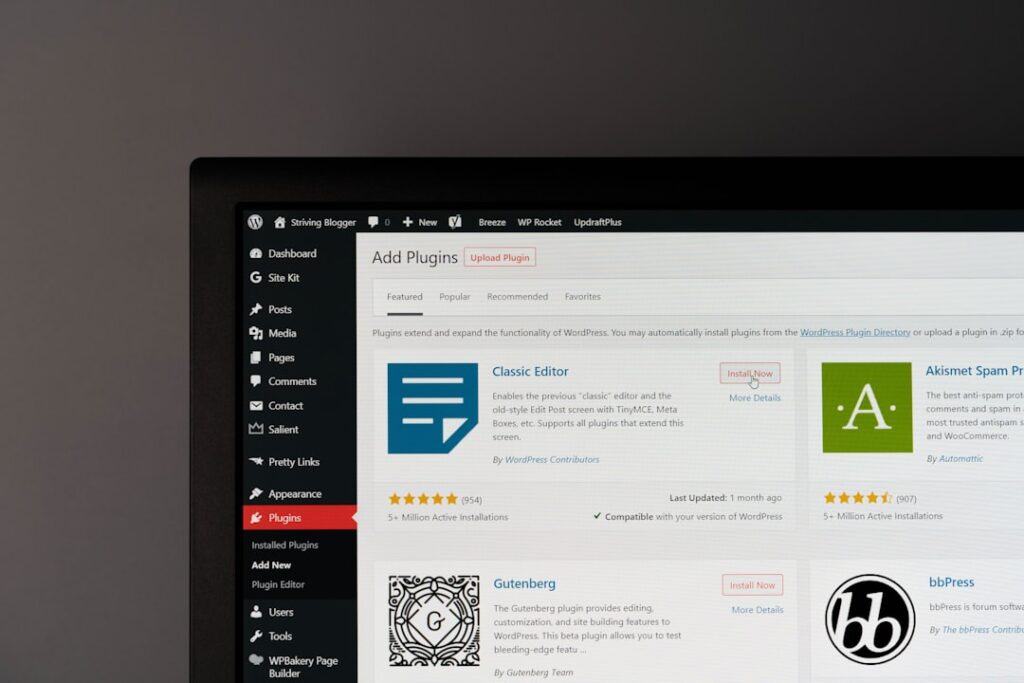
Plugins are where WordPress truly earns its reputation for flexibility. But here’s what most guides won’t tell you: more plugins is not better. Each plugin adds code that runs on every page load. Quality matters more than quantity — try to keep under 20 active plugins and remove those you don’t use. The goal is a focused plugin stack where every tool earns its place.
Below is a starting plugin stack for most beginner and small business sites, organized by function:
| Category | Recommended Plugin(s) | Free Option? | Key Trade-off |
|---|---|---|---|
| SEO | Yoast SEO or Rank Math | Yes (both) | Yoast is more established; Rank Math offers more features in the free tier. Pick one — don’t install both. |
| Security | Wordfence Security | Yes | Wordfence dominates the WordPress security landscape, processing over 389 million downloads and protecting 5 million active sites. Free version is robust for most beginners. |
| Backups | UpdraftPlus | Yes | Simple scheduling and cloud storage integration (Google Drive, Dropbox). Premium adds incremental backups. |
| Performance / Caching | WP Rocket (paid) or W3 Total Cache (free) | W3 Total Cache is free | WP Rocket is easier to configure; W3 Total Cache is more powerful but has a steeper learning curve. |
| Image Optimization | Smush or ShortPixel | Yes (both have free tiers) | Compresses images automatically on upload. Critical for page speed — large images are one of the most common performance killers. |
| Contact Forms | WPForms or Contact Form 7 | Yes (both) | WPForms is beginner-friendlier with a drag-and-drop builder; Contact Form 7 is lightweight but requires more manual setup. |
| Anti-Spam | Akismet or Antispam Bee | Yes (Akismet free for personal use) | Akismet is the default choice; Antispam Bee is fully free and privacy-friendly if GDPR compliance matters to you. |
| Analytics | MonsterInsights or Site Kit by Google | Yes (both) | MonsterInsights brings Google Analytics into your dashboard; Site Kit is Google’s official free option. |
A note on SEO plugins: Yoast SEO provides real-time analysis of your content, ensures proper keyword usage, and checks for readability, making it a reliable starting point. Rank Math is a strong alternative for users seeking to boost their posts in search rankings, with a user-friendly interface accessible for beginners while advanced features cater to SEO experts. Either works well — the important thing is consistency.
Creating Your First Pages and Posts
Once your theme is active and core plugins are installed, it’s time to build actual content. Most websites need a small set of foundational pages before they’re ready to launch — here’s the practical minimum.
Essential Pages Every Site Needs
Home Page: Your homepage is your first impression. It should clearly communicate who you are, what you offer, and what you want visitors to do next. Aim for clarity over cleverness — visitors decide within seconds whether to stay.
About Page: People do business with people they trust. An authentic About page that shares your story, credentials, or team builds the human connection that converts visitors into customers.
Contact Page: Make it easy to reach you. Use a contact form plugin (like WPForms) to avoid publishing your email address directly, which attracts spam.
Privacy Policy: If you collect any user data (which you do, even just through analytics or a contact form), a Privacy Policy page is legally required in most jurisdictions. WordPress includes a Privacy Policy template under Settings → Privacy to help you get started.
Understanding Posts vs. Pages
Pages are for evergreen, static content — your About, Services, and Contact pages. They don’t appear in your blog feed and are organized in a hierarchy. Posts are for time-stamped content like blog articles, news, or updates. They appear in your blog feed in reverse chronological order and can be organized with categories and tags. If you’re running a business site with a blog, you’ll use both.
Setting Up Navigation
Once your core pages are created, set up your navigation menu under Appearance → Menus (or via the Customizer). Your main menu should be clean and purposeful — aim for 5–7 items at most. If you’re experiencing decision paralysis about what to include, lead with what your most important visitor needs to find first.
If you’d like help mapping out your site architecture or figuring out which pages to prioritize for your specific business type, WordPress AI Tools is here to help — reach out whenever you’re ready.
WordPress Security and Maintenance Best Practices
Security isn’t optional for WordPress sites. In 2025, 11,334 new vulnerabilities were found in the WordPress ecosystem, and the most heavily targeted flaws are now being exploited within hours of disclosure. The good news: most WordPress security issues are preventable with basic habits.
Keep Everything Updated
Keeping WordPress core, plugins, and themes updated is the single highest-impact habit you can build. Plugins are where most WordPress hacks begin — not because plugins are bad, but because people forget to update them. Make it a weekly habit to check your dashboard for available updates. Before updating, always take a backup first.
92% of successful WordPress compromises in 2025 came through plugins and themes, not the core software itself — which means staying current with updates is your most powerful line of defense.
Back Up Consistently
Backups are the backbone of any WordPress maintenance strategy. No matter how secure your website is, unexpected issues can still occur — ranging from server failures to human errors. Use UpdraftPlus or a similar plugin to schedule automatic daily or weekly backups, stored off-site in Google Drive or Dropbox. A backup is truly valuable only if it can be successfully restored when needed — run restoration tests in a staging environment at least once a month to ensure files aren’t corrupted.
Harden Your Login Security
Your login page is one of the most targeted URLs on any WordPress site. Limiting login attempts, changing the default login URL, and adding CAPTCHA all reduce the volume of automated traffic hitting it. Additionally, enable two-factor authentication (2FA) for all admin accounts. Wordfence includes 2FA in its free version.
Avoid using “admin” as your username — it’s the first thing brute-force bots try. Create a unique admin username during your initial WordPress setup.
Install a Security Plugin
WordPress sites can be vulnerable to hacking attempts, so having a reliable security plugin is crucial. Wordfence Security is one of the best security plugins for WordPress, offering a comprehensive firewall and malware scanning. The free version of Wordfence is sufficient for most beginner and small business sites. As your site grows or if you handle sensitive customer data, consider stepping up to a premium security solution.
Maintain a Lean Site
Clear out post revisions, spam comments, and unused plugin tables regularly. The smaller and cleaner your database, the easier it is to spot something unusual. Deactivate and delete any plugins or themes you’re not actively using — inactive code can still harbor vulnerabilities.
A Simple Maintenance Schedule
Daily actions include backups and automated security scans. Weekly or bi-weekly tasks include plugin updates, performance checks, and log reviews. Setting calendar reminders for these tasks takes two minutes and can save you hours — or your entire site — down the road.
Frequently Asked Questions
Ready to Launch Your WordPress Website?
You now have a clear roadmap — from registering a domain to locking down your site’s security. The most common mistake beginners make isn’t choosing the wrong theme or plugin. It’s waiting too long to launch while chasing perfection. Your first WordPress site is a starting point, not a final product. Get a solid foundation in place, publish it, and improve it from there.
If you’re navigating decisions about which hosting plan matches your budget, which plugins are actually worth paying for, or how to configure WordPress for your specific type of site — that’s exactly where At WordPress AI Tools, we help beginners and small business owners cut through the noise and build sites that actually work for their goals. Contact WordPress AI Tools today for personalized guidance tailored to your situation — no pressure, no generic advice.
Frequently Asked Questions
Do I need to know how to code to build a WordPress website?
No. WordPress is designed to be used without any coding knowledge. Between the built-in block editor, drag-and-drop page builders like Elementor, and thousands of plugins, you can build a fully functional professional website without writing a single line of code. Coding knowledge is only needed if you want to make custom modifications beyond what themes and plugins offer.
What is the difference between WordPress.org and WordPress.com?
WordPress.org is the free, self-hosted software you download and install on your own web hosting. It gives you full control over your site, including which plugins and themes you use. WordPress.com is a hosted service that manages the technical side for you but comes with more restrictions on customization, plugins, and monetization — especially on lower-tier plans. For maximum flexibility, most business owners choose WordPress.org.
How much does it cost to build a WordPress website?
The WordPress software itself is free. Your main costs are web hosting (typically $3–$10/month for shared hosting, or $25–$50/month for managed WordPress hosting) and a domain name (around $10–$15/year). You can build a functional site for under $100/year. Premium themes and plugins are optional extras that add cost but often also add significant functionality.
How many plugins should I install on my WordPress site?
There is no magic number, but quality matters more than quantity. A focused plugin stack of 10–15 active plugins is reasonable for most sites. Avoid installing plugins that duplicate functionality, and delete any plugins you are not actively using — even inactive plugins can pose a security risk if they are outdated.
How often should I update my WordPress site?
You should check for WordPress core, plugin, and theme updates at least once per week. Security vulnerabilities in plugins are the most common entry point for WordPress hacks, and patches are often released quickly after a vulnerability is discovered. Always take a full backup before running updates, especially major ones.

