

If you’ve been staring at a dozen browser tabs trying to figure out how to create a WordPress website — comparing hosting plans, scrolling through 10,000 themes, and second-guessing every decision — you’re not alone. Most WordPress guides skip the part where they acknowledge that the sheer volume of choices is the real problem. This guide doesn’t do that.
What follows is a practical, phase-by-phase walkthrough for first-time WordPress users. No jargon without explanation. No “just pick the best option” without telling you what best actually means for your situation. By the end, you’ll know exactly how to create a WordPress website that matches your goals, your budget, and your comfort level with technology.
Why Creating a WordPress Website Feels Overwhelming (And Why It Doesn’t Have To Be)
The confusion usually isn’t about complexity — it’s about volume. WordPress is extraordinarily capable, and that capability comes with an ecosystem of thousands of hosting providers, tens of thousands of themes, and over 70,000 plugins. When every tutorial tells you to “just install WordPress,” they’ve already skipped the three hours of decision-making that got them there.
Here’s what most guides won’t tell you: you don’t need to make perfect decisions. You need to make good-enough decisions quickly, get something live, and refine from there. Done is almost always better than perfect when it comes to your first WordPress site.
The other thing worth acknowledging: WordPress’s dominance is real. According to W3Techs, 43.4% of all websites on the internet run on WordPress, making it the most widely used website builder in the world. That massive community means there’s a tutorial, a plugin, or a forum thread for virtually every problem you’ll encounter. You’re learning a skill with enormous real-world leverage.
What You Actually Need to Create a WordPress Website
Before diving into steps, let’s cut through the noise. You need exactly four things to get a WordPress website live: a domain name, web hosting, the WordPress software (which is free), and a theme. That’s it. Everything else — page builders, premium plugins, custom fonts — is optional, at least at the start.
WordPress.com vs. WordPress.org: The Decision You Need to Make First
This trips up almost every beginner, so let’s settle it upfront. WordPress.org is the free, open-source software you download and install on your own hosting. You own everything, control everything, and can install any plugin or theme. WordPress.com is a hosted service where WordPress manages the infrastructure — simpler to start, but more restricted unless you pay for higher tiers.
The honest trade-off: WordPress.org (self-hosted) gives you full ownership and flexibility — you can install any plugin, run ads, and monetize however you choose. WordPress.com handles updates and security for you, but limits what you can install on lower-tier plans. For most small business owners, bloggers, and solopreneurs serious about growth, WordPress.org on your own hosting is the better long-term choice. This guide focuses on that path.
Phase 1: Choosing Your Hosting and Domain (The Foundation)

Your hosting is the single most impactful decision you’ll make when you create a WordPress website. Think of it like renting an apartment: the location, building quality, and landlord responsiveness all affect your daily life — and so does your host. A bad host means slow load times, security vulnerabilities, and support that doesn’t solve your actual problems.
The Three Hosting Types (Matched to Real Situations)
Shared Hosting — Your site shares server resources with hundreds of other websites. Prices typically range from $3 to $10 per month, and most plans include one-click WordPress installation, a free domain for the first year, and a free SSL certificate. Best for: personal blogs, hobby projects, and sites expecting under 10,000 monthly visitors.
A critical gotcha to watch for: introductory rates on shared hosting plans are typically half of renewal rates. A plan advertised at $3.95/month might renew at $12.95/month after year one. Always check the renewal rate before committing — it’s the single most common “gotcha” beginner WordPress users encounter.
Managed WordPress Hosting — Your host handles updates, security, backups, and performance optimization for you. Costs typically range from $20 to $60 per month, though budget-friendly entry options exist. Best for: small business owners, anyone without time to manage technical maintenance, and sites where downtime directly costs money.
One important warning: not all “managed WordPress hosting” is truly managed. Some providers put the label on a basic shared plan without changing what’s included. Real managed hosting means your host handles updates, security, backups, and performance — not just the server setup.
VPS Hosting — A virtual private server gives you dedicated resources on your own slice of a server. VPS or cloud hosting typically runs $15 to $100+ per month. Best for: growing sites that have outgrown shared hosting, developers, and agencies managing multiple client sites.
Choosing Your Domain Name
Your domain is your web address (e.g., yoursite.com). Domain names typically cost around $10–$15 per year, and many hosting plans include a free domain for the first year. Keep it short, memorable, and relevant to your brand. Avoid hyphens, numbers, and anything hard to spell when heard aloud. If your ideal .com is taken, .org or .co are legitimate alternatives — but .com still carries the most trust with general audiences.
Register your domain and hosting together when you’re starting out. It simplifies the technical setup (DNS configuration is handled automatically) and reduces the number of accounts you need to manage.
Phase 2: Installing WordPress and Picking Your First Theme

Once your hosting is set up, installing WordPress takes under 10 minutes. Most hosting providers now offer one-click WordPress installation, meaning you don’t need to touch a server or write a single line of code. Look for a “WordPress” or “Softaculous” button inside your hosting control panel (cPanel), click it, fill in your site name and admin email, and you’re done.
Navigating the WordPress Dashboard for the First Time
When you first log in to your WordPress site (usually at yoursite.com/wp-admin), you’ll see the dashboard — a menu on the left with sections like Posts, Pages, Appearance, Plugins, and Settings. Don’t let this overwhelm you. Here’s a plain-language translation of what matters most at the start:
Posts = your blog articles. Pages = your static content (Home, About, Contact). Appearance → Themes = how your site looks. Plugins = add-on features. Settings = the control room for how everything behaves. You’ll spend most of your early time in Appearance and Pages.
Picking Your First Theme: A Decision Framework
A theme controls the visual design of your site. The WordPress theme library has over 11,000 free options, and premium themes add thousands more. Decision paralysis is real here — so use this framework to narrow it down fast.
If you’re on a zero budget: Start with one of WordPress’s free block themes (Twenty Twenty-Four or Twenty Twenty-Five) or a well-supported free theme like Astra, Kadence, or GeneratePress. Astra, Kadence, and OceanWP are among the most popular free themes that give your site a professional look without any cost.
If you have a small budget ($50–$100): A well-built premium theme typically costs $50 to $100 per year and offers better design control and performance optimization than most free themes. Premium themes often include dedicated support — valuable when you’re still learning.
The honest trade-off: Avoid themes with thousands of built-in features and options. “Feature-rich” themes often load slowly and become difficult to customize. Lean, fast-loading themes with a smaller feature set almost always serve beginners better in the long run. Look for themes that are actively maintained, have recent update history in the WordPress theme directory, and positive support forum responses.
Phase 3: Essential Setup Steps Before You Publish Anything
Most first-time WordPress users skip straight to customizing their design and adding content — and then spend weeks fixing foundational problems later. Run through these five setup steps before you write a single page of content.
Step 1: Configure Your Permalinks
Permalinks are the URL structure for your pages and posts. By default, WordPress uses ugly URLs like ?p=123. Change this immediately. Go to Settings → Permalinks and select “Post name” (e.g., yoursite.com/about-us). This is better for both SEO and readability, and it’s one of those settings that causes real problems if you change it after you already have content indexed by Google.
Step 2: Set Your Site Title and Tagline
Go to Settings → General and set your site title and tagline. These appear in browser tabs, search engine results, and some theme header areas. Your site title should match your brand or business name. Your tagline should clearly describe what the site is about in one short phrase.
Step 3: Delete Default Content
WordPress installs with a “Hello World” sample post, a sample page, and a default comment. Delete all of these before you launch. They look unprofessional and can confuse search engines about what your site is actually about.
Step 4: Set a Static Homepage (For Most Sites)
By default, your homepage shows your latest blog posts. Most business sites and portfolios need a custom homepage instead. Go to Settings → Reading, select “A static page,” and assign a page you’ve created as your Homepage. You can set a separate “Posts page” for your blog if you have one.
Step 5: Enable SSL (HTTPS)
Your hosting plan should include a free SSL certificate. Make sure it’s activated so your site loads as https:// rather than http://. SSL is a trust signal to both visitors and Google. If your host hasn’t set it up automatically, look for an SSL option in your hosting control panel, or install the free Really Simple SSL plugin to handle the configuration in a single click.
The 5 Must-Have Plugins for Every New WordPress Site
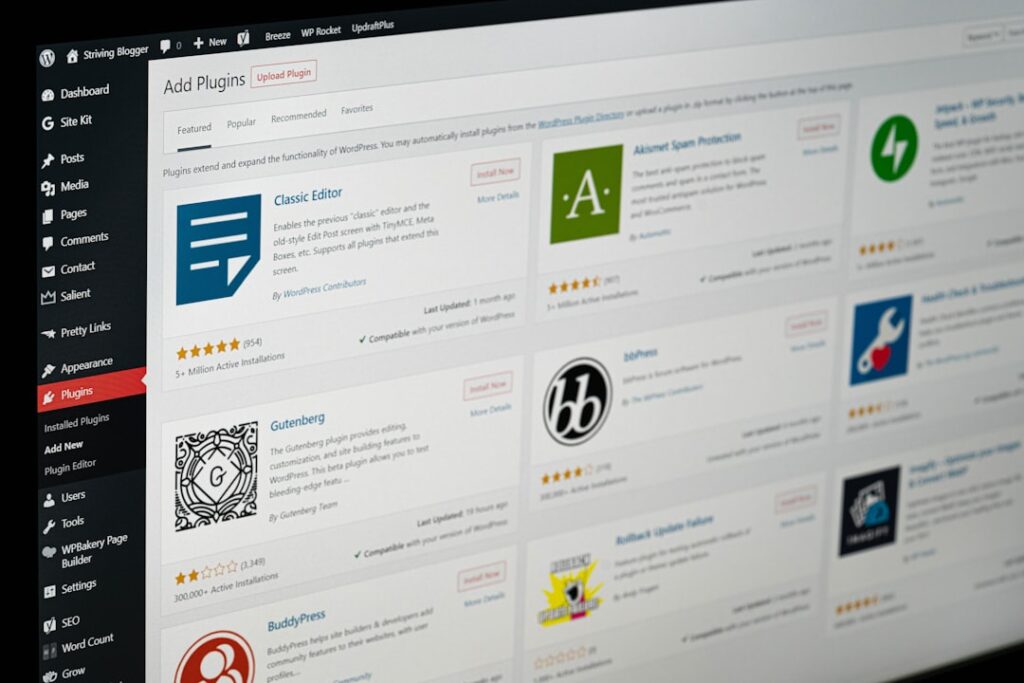
With over 70,000 plugins available, the temptation is to install everything that looks useful. Resist it. What matters more than the number of plugins is the quality of each one. Here are five that belong on virtually every new WordPress site, regardless of niche or goal.
| Plugin | What It Does | Free Option? | Paid Pricing (approx.) | Key Trade-off |
|---|---|---|---|---|
| Yoast SEO or Rank Math | Optimizes your content for search engines — meta titles, descriptions, sitemaps, and on-page analysis | Yes (both) | Yoast from $99/yr; Rank Math from $59/yr | Yoast is more established; Rank Math offers more features in the free tier. Don’t install both. |
| UpdraftPlus | Automated backups to cloud storage (Google Drive, Dropbox, etc.) so you can restore your site if anything goes wrong | Yes | From ~$70/yr for premium | Free version covers most beginner needs. The paid version adds more backup destinations and scheduling flexibility. |
| Wordfence Security or Solid Security | Firewall, malware scanning, login protection, and brute-force attack blocking | Yes (both) | Wordfence from $119/yr; Solid Security from $99/yr | Free versions are genuinely useful for most new sites. Upgrade when site traffic grows and security risk increases. |
| WPForms Lite | Drag-and-drop contact form builder — WordPress has no built-in contact form functionality | Yes (Lite version) | From $39.50/yr for paid tiers | The free Lite version handles basic contact forms well. Upgrade only if you need payment forms, surveys, or conditional logic. |
| WP Super Cache or LiteSpeed Cache | Caching plugin that speeds up your site by serving static files instead of regenerating pages on every visit | Yes (both) | WP Super Cache is fully free; LiteSpeed Cache is free (requires LiteSpeed server) | If your host uses LiteSpeed servers, use LiteSpeed Cache. Otherwise, WP Super Cache is a reliable free option. WP Rocket ($59/yr) is the premium choice if speed is critical. |
A note on plugin quality: always check that a plugin has been updated within the last 6 months, has at least a 4-star average rating, and has more than 10,000 active installations before installing it. These filters alone will save you from installing abandoned or poorly-coded plugins that create conflicts and slow your site down.
Common Mistakes First-Time WordPress Users Make (And How to Avoid Them)
The most expensive WordPress mistakes aren’t technical — they’re strategic. Here are the ones that cost beginners the most time and money, and how to sidestep all of them.
Mistake 1: Choosing Hosting Based on Introductory Price Alone
A $2.99/month shared hosting plan that renews at $10.99/month is not actually a $2.99/month plan — it’s a $10.99/month plan with a one-year discount. Many hosts offer a low first-year deal, but the renewal cost can be double or even triple. Before signing up with any host, look at the renewal pricing on their pricing page (it’s usually in small print). Budget based on the renewal rate, not the introductory rate.
Mistake 2: Installing Too Many Plugins “Just in Case”
Every new plugin is a potential source of conflicts, security vulnerabilities, and performance drag. Most guides recommend keeping under 20 active plugins where possible. Install a plugin when you have a specific need it solves — not because it looks useful in theory. Review your installed plugins every three months and deactivate and delete anything you’re not actively using.
Mistake 3: Skipping Backups Until It’s Too Late
Every WordPress site will eventually need a backup. Plugin conflicts, hosting issues, accidental content deletion, or a security breach — any of these can wipe out work you’ve spent months building. Set up UpdraftPlus (or your host’s backup system) before you launch. Configure it to automatically back up to an off-site location like Google Drive or Dropbox at least weekly, and daily if you publish content frequently.
Mistake 4: Waiting for “Perfect” Before Launching
This is the most common reason first-time WordPress users never actually publish anything. You don’t need 20 pages, a perfect logo, or a fully polished design to launch. You need a homepage, an About page, a Contact page, and something useful for visitors. Launch with that. The rest can come later, and will come faster once you have real user feedback to guide you.
Mistake 5: Not Updating WordPress Core, Themes, or Plugins
Outdated WordPress installations are one of the most common causes of site hacks. When you see update notifications in your dashboard, run them — but do it methodically. If you’re on managed WordPress hosting, your host likely handles core and plugin updates for you. If you’re on shared hosting, make a habit of checking for updates at least once a week. Ideally, take a backup just before running major updates so you can roll back if something breaks.
Mistake 6: Ignoring Mobile Responsiveness
Most modern WordPress themes are mobile-responsive by default — meaning they automatically adjust to look good on phones and tablets. But “responsive” doesn’t always mean “good.” After installing your theme and adding content, check your site on an actual mobile device (not just a browser preview). Look specifically at navigation menus, font sizes, button tap targets, and image scaling. Google’s search ranking algorithm prioritizes mobile experience, so this directly impacts how your site ranks.
What to Expect: Realistic Timeline and Costs
Here’s what nobody tells you clearly: the time it takes to create a WordPress website varies enormously based on your content readiness, not your technical skill. The technical setup — hosting, WordPress installation, theme configuration, and plugins — typically takes a weekend or less. What takes longer is deciding what pages you need, writing the copy, sourcing images, and refining the design.
Realistic Timeline Breakdown
Day 1–2: Choose and set up hosting, register your domain, install WordPress, choose and activate a theme, complete the essential setup steps above.
Day 3–7: Install and configure your five must-have plugins, create your core pages (Home, About, Contact, Services if applicable), set up your navigation menu.
Week 2–3: Refine your design, optimize for mobile, write final page copy, add images, configure your SEO plugin for basic on-page optimization.
Week 3–4: Review everything, run a speed test, test all contact forms, and launch. Simple brochure websites with 5–10 pages typically take 7–14 days from start to finish. Give yourself two to three weeks if this is your first site and you’re learning as you go — that’s both honest and achievable.
Honest Cost Breakdown by Scenario
WordPress.org software is free. Your actual costs break down like this:
| Cost Item | Budget Option | Mid-Range Option | Key Renewal Note |
|---|---|---|---|
| Domain name | ~$10–$15/yr | ~$10–$15/yr | Renews annually; some hosts include first year free |
| Shared hosting | $3–$10/mo (intro) | $8–$15/mo (renewal) | Always check renewal rate before signing up |
| Managed WordPress hosting | $20/mo | $30–$60/mo | Includes backups, updates, security — often replaces 2–3 separate plugin costs |
| Theme | Free (Astra, Kadence, GeneratePress) | $50–$100/yr premium | Premium themes often include annual renewal for updates and support |
| Essential plugins (SEO, backup, security, forms, cache) | $0 (free versions) | $100–$200/yr combined | Free versions are sufficient for most new sites in year one |
| Estimated Year 1 Total | ~$50–$150 | ~$300–$800 | — |
The honest trade-off: starting cheap on shared hosting is fine. Just don’t be surprised when year two costs more. Budget for renewal rates, not introductory rates, from day one.
If you’re experiencing decision paralysis about whether to invest in managed hosting upfront, consider this framework: if your website will directly generate revenue (bookings, leads, sales), the reliability and time savings of managed hosting easily justify the cost. If you’re building a personal blog or testing an idea, start with shared hosting and upgrade when the business case is clear.
At WordPress AI Tools, we work with small business owners and solopreneurs at exactly this decision point every day. If you’re unsure which hosting tier or setup path makes sense for your specific situation, our team can walk you through it — no pressure, no generic advice. Reach out when you’re ready.
Frequently Asked Questions About Creating a WordPress Website
Ready to Build Your Site? Here’s Your Next Step
You now have a complete framework for how to create a WordPress website from scratch — without the confusion, the wasted money on wrong decisions, or the paralysis that stops most beginners before they start. The path is straightforward: pick your hosting, register your domain, install WordPress, choose a lean theme, run your essential setup steps, install five solid plugins, and launch.
Don’t wait until everything feels perfect. Launch with your core pages, gather real feedback from real visitors, and improve from there. Every successful WordPress site you’ve ever visited started as an imperfect version of itself.
If you want to go further — whether that’s accelerating your site with AI-powered content tools, choosing the right hosting for your specific traffic goals, or getting an honest second opinion on your current setup — the team at WordPress AI Tools is here to help. Contact WordPress AI Tools today for personalized guidance tailored to your situation — no pressure, no one-size-fits-all answers. Just practical advice matched to where you actually are.
Frequently Asked Questions
Do I need to know how to code to create a WordPress website?
No. WordPress is designed to be used without any coding knowledge. The WordPress dashboard, theme customizers, and drag-and-drop page builders like Elementor handle design and layout visually. Knowing a little HTML and CSS can be helpful later, but it is not required to build and run a fully functional site.
What is the difference between WordPress.com and WordPress.org?
WordPress.org is the free, self-hosted version where you download the software and install it on your own hosting. You have full control over plugins, themes, and monetization. WordPress.com is a hosted service that handles infrastructure for you, but restricts what you can install on lower-tier plans. For most business owners and bloggers serious about growth, WordPress.org (self-hosted) is the better long-term choice.
How much does it actually cost to create a WordPress website?
The WordPress software is free, but you need hosting and a domain name. A basic WordPress site can cost as little as $50–$150 in the first year using shared hosting and free themes and plugins. A mid-range setup with managed hosting and a premium theme typically runs $300–$800 per year. Always check hosting renewal rates before signing up — introductory prices often double or triple after year one.
How long does it take to build a WordPress website as a beginner?
The technical setup (hosting, WordPress installation, theme, and core plugins) typically takes one to two days. Building and publishing your core pages usually takes one to three weeks depending on your content readiness. Simple brochure websites with 5–10 pages typically take 7–14 days from start to finish for a first-time builder.
How many plugins do I actually need on a new WordPress site?
Most new WordPress sites need five core plugins: an SEO plugin (Yoast or Rank Math), a backup plugin (UpdraftPlus), a security plugin (Wordfence or Solid Security), a contact form plugin (WPForms Lite), and a caching plugin (WP Super Cache or LiteSpeed Cache). Free versions of all five are available and are sufficient for most new sites in their first year.

