
WordPress web development has evolved far beyond its blogging roots. Whether you’re launching a personal portfolio, a small business storefront, or a high-traffic media publication, WordPress gives you the foundation to build virtually any type of website — without locking you into a proprietary platform. But the sheer breadth of WordPress capabilities can feel overwhelming if you don’t know where to start or which tools actually matter.
At WordPress AI Tools, we work with website owners at every stage — from first-timers spinning up their initial site to agency professionals managing dozens of client projects. This guide walks through what makes WordPress web development so powerful, the essential tools you need, design best practices that actually move the needle, and the challenges you’ll face (along with honest solutions).
WordPress Web Development: The Basics
WordPress is an open-source content management system (CMS) built on PHP and MySQL. It gives you a visual interface to create, manage, and publish web content — and a massive ecosystem of themes, plugins, and developer tools to extend that foundation in almost any direction. Here’s what you actually need to understand before building your first WordPress web project.
How WordPress Actually Works
Every WordPress website consists of three core layers: the WordPress core software (the engine), a theme (the design and layout), and plugins (additional features and functionality). The core handles user management, content storage, database operations, and the block editor interface. Your theme controls how everything looks — colors, fonts, layout structure, and responsive behavior. Plugins extend what WordPress can do, from SEO optimization and contact forms to full e-commerce storefronts.
Think of it like building a house. WordPress core is the foundation and framing. Your theme is the architecture, paint, and finishes. Plugins are the appliances, smart home systems, and security features you add based on how you plan to live there.
WordPress.org vs. WordPress.com
This is the single most common point of confusion for new WordPress web developers. WordPress.org is the self-hosted, open-source software — you download it, install it on your own hosting, and have complete control. WordPress.com is a managed hosting service built on the same software but with varying levels of restriction depending on your plan. For most serious web development projects, WordPress.org (self-hosted) is the way to go because you control everything: your hosting environment, your plugins, your data, and your long-term costs.
Who WordPress Web Development Is For
If you’re feeling uncertain about whether WordPress fits your project, consider this: the platform powers everything from single-page portfolios to enterprise media outlets like Time Magazine. It handles blogs, membership sites, online courses, WooCommerce stores, and complex multi-site networks. The question isn’t whether WordPress can do what you need — it’s whether you choose the right theme, plugins, and hosting to support your specific goals.
Why WordPress Powers Modern Web Development
WordPress dominates web development because it combines unmatched flexibility with a low barrier to entry — and a plugin ecosystem that handles almost every feature you can imagine. No other platform comes close to matching this combination at scale.
Market Dominance by the Numbers
According to W3Techs, WordPress powers roughly 43% of all websites on the internet. That figure includes sites both with and without a CMS. Among websites that use a known CMS, WordPress holds approximately 60–64% of the market — more than 10 times the share of its nearest competitor, Shopify, which sits at around 4.8%.
Here’s an honest note: the “43% of the web” statistic counts any detectable WordPress installation, including dormant sites, staging environments, and abandoned projects. The actual number of actively maintained WordPress sites is likely lower. But even accounting for that, WordPress remains the dominant force in web development by a wide margin.
The Plugin and Theme Ecosystem
The real power of WordPress web development isn’t just the core software — it’s the ecosystem built around it. The official WordPress plugin directory contains over 70,000 plugins, and that number continues to grow. Several plugins have reached 5–10+ million active installations, including heavyweights like Elementor, Yoast SEO, WooCommerce, and Wordfence. On the theme side, the WordPress.org directory offers over 13,000 themes, with thousands more available through third-party marketplaces.
For small business owners and solopreneurs, this means you can add professional-grade features — payment processing, appointment booking, email marketing integration — without hiring a developer for every new capability.
WordPress vs. Other Platforms
| Feature | WordPress (Self-Hosted) | Shopify | Squarespace | Wix |
|---|---|---|---|---|
| Market Share (All Sites) | ~43% | ~4.8% | ~2.3% | ~3.7% |
| Open Source | Yes | No | No | No |
| Full Code Access | Yes | Limited | Limited | Limited |
| Plugin Ecosystem | 70,000+ | 8,000+ apps | Limited integrations | 300+ apps |
| E-commerce Built-In | Via WooCommerce (free) | Native | Native | Native |
| Hosting Flexibility | Any host | Shopify only | Squarespace only | Wix only |
| Typical Monthly Cost | $3–$50+ (hosting) | $39–$399 | $16–$49 | $17–$159 |
| Migration Ease | High (you own everything) | Moderate | Low | Low |
The biggest advantage WordPress offers over closed platforms is ownership. With Shopify, Squarespace, or Wix, you’re renting space on someone else’s platform. With WordPress, you own your content, your design, and your data. If you ever want to switch hosting providers, you can — your site travels with you. That flexibility alone makes WordPress the stronger choice for anyone thinking about their website as a long-term business asset.
Essential Tools for WordPress Web Projects
Building a WordPress website well requires more than just installing WordPress and picking a theme. The right tools reduce development time, protect your site, and ensure your visitors have a fast, smooth experience. Here’s what actually matters — organized by project stage.
Local Development Environments
Never build directly on a live server. Local development tools let you build, test, and break things safely on your own computer before pushing anything live. The most popular options include:
Local by Flywheel: A free tool that sets up a complete WordPress environment on your machine with PHP, MySQL, and HTTPS — no configuration headaches. Great for beginners and agencies alike.
DevKinsta: Similar to Local, with tight integration if you’re hosting on Kinsta. Handles environment setup automatically and eliminates configuration guesswork during team handoffs.
Docker / DDEV: For developers who want full control over their environment and need to match production configurations exactly. More setup time, but better parity across development and production.
Theme and Design Tools
The WordPress block editor (Gutenberg) has matured significantly. Most modern themes are now built as block themes with Full Site Editing (FSE) support, meaning you can customize headers, footers, templates, and global styles directly in the WordPress editor — no code required. Popular block-ready themes include GeneratePress, Astra, Neve FSE, and Spectra One.
For those who need more visual design control, page builders like Elementor remain widely used. But here’s the honest trade-off: page builders add JavaScript and CSS overhead that can slow your site. If performance matters to you (and it should), a lightweight block theme paired with the native editor is often the better path.
Performance and Caching Plugins
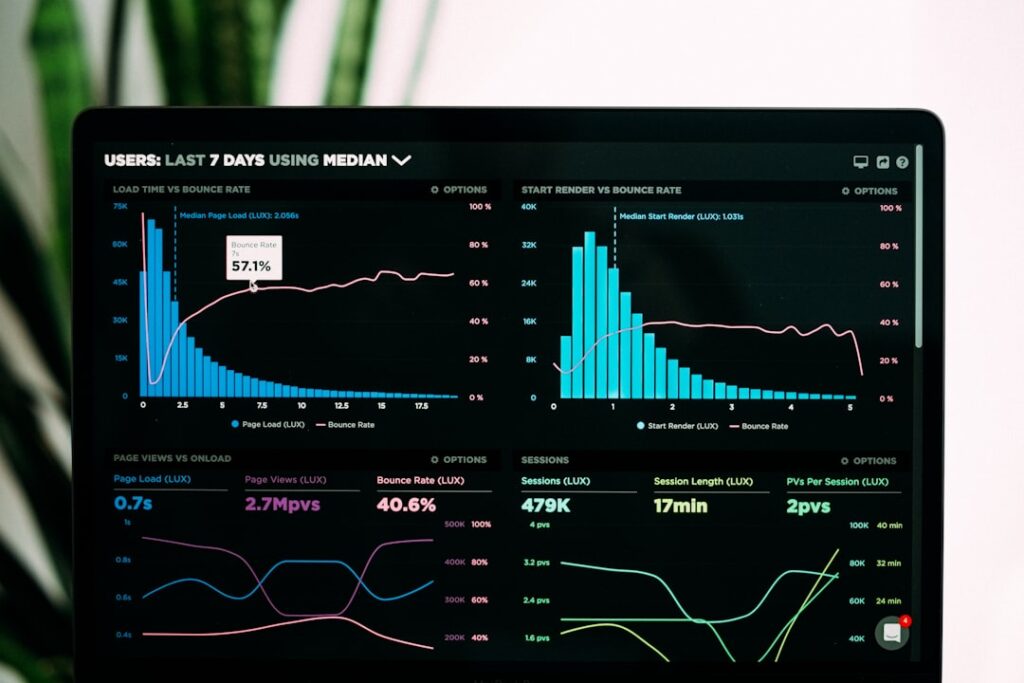
Site speed directly affects your search rankings, bounce rates, and conversions. Google’s Core Web Vitals — metrics like Largest Contentful Paint (LCP) and Interaction to Next Paint (INP) — are ranking factors. Essential performance tools include:
Caching: WP Rocket or LiteSpeed Cache for page caching. Redis or Memcached for object caching (often available through your host).
Image Optimization: Use modern formats like WebP or AVIF. WordPress core now supports AVIF natively, offering superior compression compared to JPEG and PNG.
CDN (Content Delivery Network): Services like Cloudflare or BunnyCDN serve your static files from servers geographically close to your visitors, reducing load times significantly. A CDN is especially important if your audience is spread across multiple regions.
Security Essentials
With WordPress powering such a large portion of the web, it’s a primary target for automated attacks. Security isn’t optional — it’s foundational. At minimum, every WordPress web project needs:
SSL Certificate: Encrypts data between your site and visitors. Most hosting providers include free SSL via Let’s Encrypt.
Two-Factor Authentication (2FA): Protects your login from brute-force attacks. This is no longer a nice-to-have — it’s standard practice.
Security Plugin: Wordfence or Sucuri provides real-time threat detection, malware scanning, and firewall protection.
Regular Updates: Keep WordPress core, themes, and plugins updated. The majority of WordPress security breaches exploit known vulnerabilities in outdated software.
AI-Powered Development Tools
AI tools have become a standard part of the WordPress development toolkit. Inside the block editor, tools like Jetpack AI Assistant help draft content, rewrite sections, and brainstorm ideas. On the development side, tools like GitHub Copilot and ChatGPT are widely used for writing plugin logic, generating boilerplate code, and debugging PHP errors.
A word of caution: AI-generated code and content always requires human review. These tools accelerate your workflow, but they don’t replace understanding. If you’re exploring how AI fits into your WordPress workflow, WordPress AI Tools offers guidance on integrating these technologies effectively without sacrificing quality or authenticity.
WordPress Web Design Best Practices
Good WordPress web design starts with your users, not your preferences. A beautiful site that loads slowly, confuses visitors, or breaks on mobile is a liability, not an asset. These best practices apply whether you’re building a blog or a full e-commerce operation.
Mobile-First, Always
More than half of all web traffic comes from mobile devices. Yet many WordPress sites are still designed on desktop screens first, with mobile treated as an afterthought. Flip that approach. Start your design with mobile layouts, then expand for larger screens. Every modern WordPress theme should be fully responsive, but always test your actual pages on real devices — not just browser preview modes.
Embrace Full Site Editing
Full Site Editing (FSE) represents the future of WordPress web design. With block themes, you can customize every part of your site — headers, footers, templates, and global styles — all from the WordPress editor without touching code. The theme.json file gives developers granular control over design tokens like colors, spacing, typography, and layout constraints.
If you’re starting a new project, choosing a block theme with FSE support is the smartest long-term investment. You’ll get cleaner code, faster load times, and native compatibility with future WordPress updates. Classic themes aren’t going away immediately, but the direction is clear.
Performance-Driven Design Choices
Here’s a quick action plan for keeping your WordPress web design fast:
1. Limit plugins to what you actually need. Every plugin adds code that loads on your pages. Audit your plugin list quarterly and remove anything that isn’t actively serving a purpose.
2. Optimize every image before uploading. Compress images to WebP format, resize them to match their display dimensions, and use lazy loading so below-the-fold images only load when visitors scroll to them.
3. Choose a lightweight theme. Premium themes packed with 50+ bundled features often load massive CSS and JavaScript files regardless of which features you actually use. A focused theme like GeneratePress loads in under 2 seconds with page sizes averaging just 7.5 KB.
4. Clean your database regularly. Post revisions, spam comments, expired transients, and unused draft content accumulate over time and slow down database queries. Use a plugin like WP-Optimize or handle it through phpMyAdmin.
Accessibility Matters
An accessible WordPress site isn’t just ethically right — it’s legally important in many jurisdictions and improves your SEO. Use proper heading hierarchy (H1 through H6 in order), add alt text to every image, ensure sufficient color contrast, and make sure all interactive elements are keyboard-navigable. WordPress core and most modern block themes are built with accessibility in mind, but custom modifications can easily break those standards if you’re not careful.
Common WordPress Web Development Challenges
WordPress web development is powerful, but it isn’t without friction. Understanding the most common challenges upfront saves you hours of frustration and potentially costly mistakes. Here’s what most guides won’t tell you — along with practical solutions.
Plugin Conflicts and Bloat
The same ecosystem that makes WordPress flexible can also become its biggest liability. Installing too many plugins — or plugins that conflict with each other — leads to broken functionality, slow load times, and security vulnerabilities. A practical rule: if two plugins do similar things, keep the better one and delete the other. Before installing any new plugin, check its last update date, support forum activity, and compatibility with your WordPress version.
Security Vulnerabilities
WordPress’s popularity makes it a target. Most attacks don’t exploit WordPress core itself — they target outdated plugins, weak passwords, and misconfigured hosting. The fix is straightforward but requires discipline: keep everything updated, use strong unique passwords with 2FA, implement a web application firewall (WAF), and run automated backups so you can recover quickly if something does go wrong.
Performance Bottlenecks
Slow WordPress sites are almost never a WordPress problem — they’re a configuration problem. The most common culprits are cheap shared hosting, unoptimized images, too many plugins loading JavaScript on every page, and a bloated database. Start with quality managed WordPress hosting (expect to pay $15–$50/month for a single site), add server-level caching, use a CDN, and regularly audit your site’s performance using Google PageSpeed Insights or GTmetrix.
The Learning Curve for Modern WordPress
The shift from classic themes to block themes and Full Site Editing represents a genuine learning curve, even for experienced WordPress users. Expect about a week to get comfortable with the Site Editor interface. The WordPress Developer Handbook and community resources like Learn WordPress (learn.wordpress.org) provide structured learning paths for both beginners and developers transitioning to the block-first paradigm.
Hidden Costs and Renewal Pricing
Here’s the reality check that many WordPress tutorials skip: while WordPress core is free, the total cost of running a professional WordPress website includes hosting, a domain name, premium themes or plugins (often with annual renewal fees), and potentially developer time for customization. Always check the renewal rate before committing to any hosting plan or premium plugin — introductory pricing can be half (or less) of the ongoing cost. Budget for the real annual expense, not just the first-year promotional price.
Frequently Asked Questions
Start Your WordPress Web Project Today
WordPress web development gives you something no closed platform can: complete ownership and control over your online presence. Whether you’re building your first site or scaling a portfolio of client projects, the combination of open-source flexibility, a massive plugin ecosystem, and an ever-improving block editor makes WordPress the strongest foundation for modern web development.
The key to success isn’t just choosing WordPress — it’s making the right decisions about hosting, themes, plugins, and performance optimization from day one. Those early choices compound over time, affecting your site speed, security, search rankings, and ultimately your bottom line.
If you need guidance tailored to your specific WordPress setup — whether that’s choosing between managed hosting providers, integrating AI tools into your workflow, or optimizing a site that’s grown unwieldy — contact WordPress AI Tools today. We’re here to help you navigate these decisions with confidence, not pressure. Explore our in-depth guides and reviews to find the tools that match your specific needs and budget.
Frequently Asked Questions
Is WordPress good for professional web development?
Yes. WordPress powers roughly 43% of all websites, including enterprise media outlets, e-commerce stores, and SaaS platforms. With the right hosting, theme, and plugin choices, WordPress handles everything from simple business sites to complex web applications. Its open-source nature gives developers full code access and hosting flexibility that closed platforms cannot match.
How much does it cost to build a WordPress website?
WordPress core software is free, but total costs include hosting ($3–$50+ per month depending on type), a domain name ($10–$15 per year), and optional premium themes or plugins ($50–$300+ per year each). Always check renewal pricing, as introductory rates are often 50% or less of the ongoing annual cost. A basic professional site typically costs $200–$500 for the first year.
What is Full Site Editing in WordPress?
Full Site Editing (FSE) lets you customize every part of your WordPress website — including headers, footers, templates, and global styles — using the block editor. No code editing is required. FSE works with block themes and the theme.json configuration file, giving both beginners and developers flexible, visual control over site design.
How do I make my WordPress site faster?
Start with quality managed hosting, use a caching plugin like WP Rocket or LiteSpeed Cache, add a CDN such as Cloudflare, optimize images to WebP or AVIF format, limit your active plugins to only what you need, and clean your database regularly. Focus on server-level caching and a lightweight theme before adding optimization plugins.
Is WordPress secure enough for business websites?
WordPress core is secure when kept updated. Most security breaches target outdated plugins, weak passwords, or misconfigured hosting — not WordPress itself. Protect your site with SSL, two-factor authentication, a security plugin like Wordfence, regular backups, and consistent updates to core, themes, and plugins. These measures make WordPress fully suitable for business use.

