
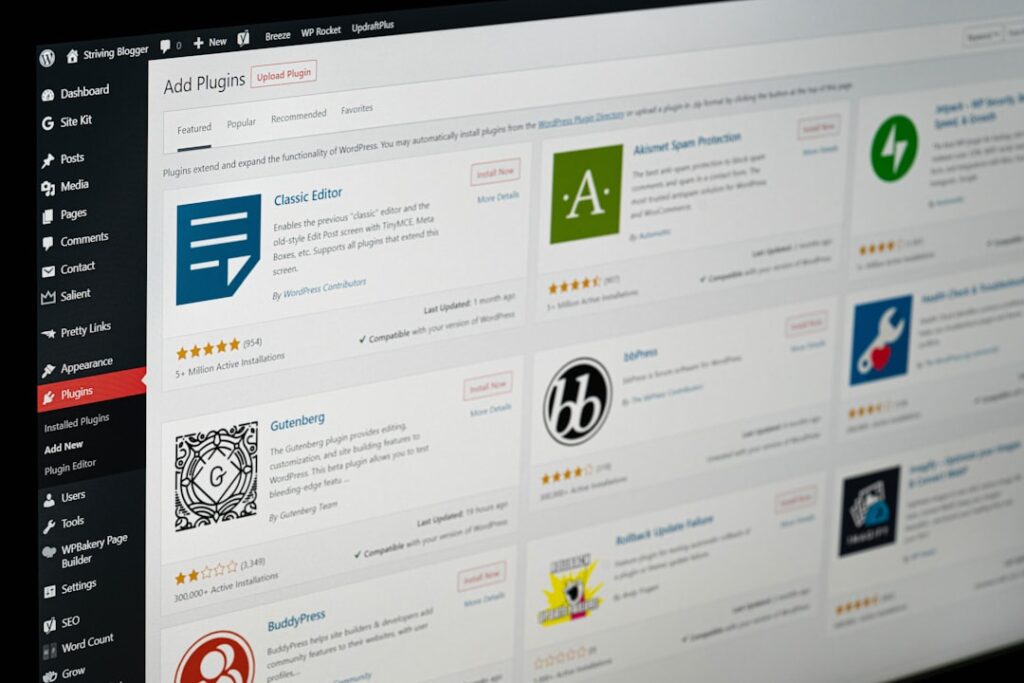
If you just logged into your WordPress admin for the first time and felt a wave of “where do I even begin?” — you’re in good company. The dashboard throws a lot at you all at once: a sidebar full of menus, widgets stacked on the home screen, notification badges everywhere. Most guides either skip past this overwhelm or assume you already know what a “permalink” is.
This guide is different. We’ll walk through the WordPress admin section by section, in plain language, with honest notes on what matters immediately, what you can safely ignore for now, and a few hidden features most beginners never discover. By the end, you’ll feel oriented rather than overwhelmed.
What the WordPress Admin Dashboard Actually Is (And Why It Feels Overwhelming at First)
The WordPress admin (also called the “back end” or “wp-admin”) is your site’s control room — the private area where you write content, manage design, install plugins, and configure every setting. Visitors never see it. Only logged-in users with the right permissions can access it.
You reach it by going to yourdomain.com/wp-admin. Once you log in, the first screen you land on is the Dashboard home — a bird’s-eye overview of your site’s content, recent activity, and quick shortcuts.
The confusion usually isn’t about complexity. It’s about information density. WordPress shows you everything at once — even the things you won’t need for months. The honest trade-off: that breadth is also what makes WordPress powerful. Once you know which sections belong to which tasks, the layout becomes surprisingly logical.
The Three Zones of the WordPress Admin
Every screen inside the WordPress admin is built from three structural elements:
1. The Top Admin Bar — A thin black bar that runs across the top of every page, both inside the admin and on your live site when you’re logged in. It holds quick links: visit your site, add new content, see comment notifications, and access your profile. Think of it as your shortcut ribbon.
2. The Left Sidebar Menu — The main navigation hub. Every major function in WordPress lives here, from Posts and Pages to Plugins, Users, and Settings. This is where you’ll spend most of your time navigating.
3. The Work Area (Screen Body) — The large central panel that changes depending on which menu item you’ve clicked. This is where you write posts, upload media, configure settings, and do most of your actual work.
Navigating Your WordPress Admin: The Core Sections That Matter Most
Not every section in the WordPress admin demands your attention on day one. Here’s a practical priority framework — which sections to learn first, which can wait, and why.
Learn these first (you’ll use them constantly): Posts, Pages, Media, Appearance, and Settings. These cover 90% of what you’ll do in any given week — creating content, managing your site’s look, and keeping configuration tight.
Learn these soon (within your first month): Plugins, Users, and Comments. These become important as your site grows and you start adding functionality or working with others.
Learn these when you need them: Tools, Dashboard Updates, and any plugin-added menu items. Tools is mostly for importing/exporting content or checking site health. Plugin menus vary wildly — they appear after you install new plugins.
One area that many beginners overlook immediately is Dashboard → Updates. This sub-section shows pending updates for WordPress core, your themes, and your plugins. Keeping these current is one of the most important security habits you can build from day one.
The Left Sidebar Menu: What Each Section Does (In Plain Language)
Here’s a plain-language breakdown of every default section in the WordPress admin sidebar, what it does, and how urgently you need to engage with it.
| Menu Section | What It Does | Key Sub-Sections | Priority for Beginners |
|---|---|---|---|
| Dashboard | Overview of site activity, quick stats, shortcuts, and news | Home, Updates | ⚡ Check Updates regularly |
| Posts | Create, edit, and organize blog posts | All Posts, Add New, Categories, Tags | 🔴 High — your primary content tool |
| Media | Upload and manage images, videos, PDFs, and files | Library, Add New | 🔴 High — used every time you add content |
| Pages | Create and manage static pages (About, Contact, etc.) | All Pages, Add New | 🔴 High — set up key pages first |
| Comments | View, approve, reply to, or delete reader comments | All Comments | 🟡 Medium — moderate as needed |
| Appearance | Control how your site looks — theme, menus, and widgets | Themes, Customize, Widgets, Menus, Theme Editor | 🔴 High — set your theme early |
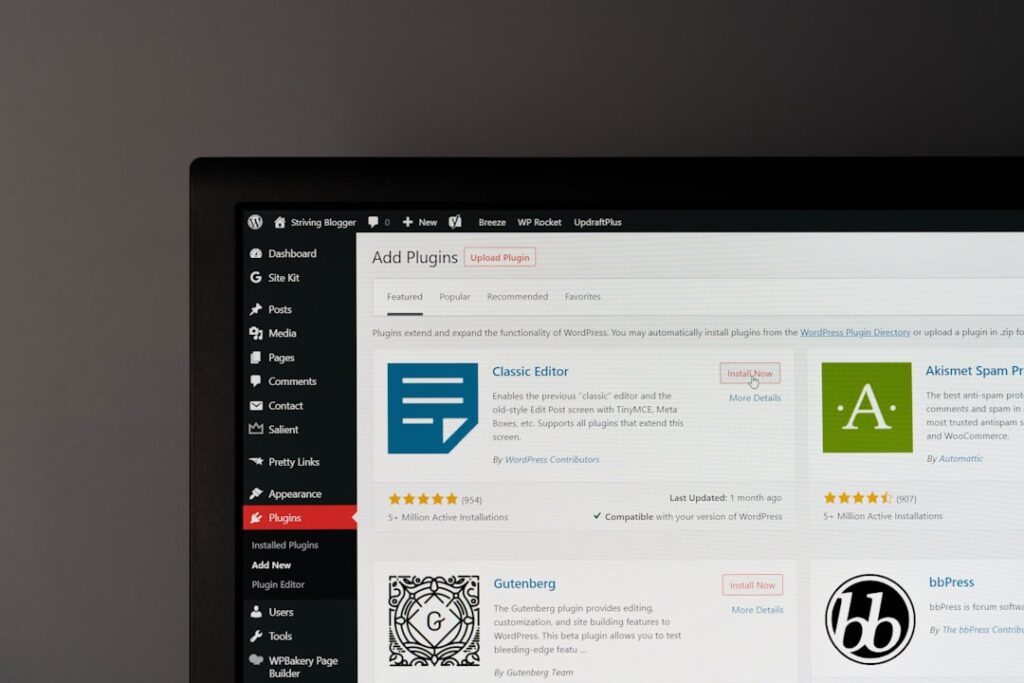
| Plugins | Add, activate, deactivate, and delete plugins | Installed Plugins, Add New, Plugin Editor | 🟡 Medium — add essentials first |
| Users | Manage who can log in and what they can do | All Users, Add New, Profile | 🟡 Medium — critical if you have a team |
| Tools | Import/export content, check site health, and manage data | Available Tools, Import, Export, Site Health | 🟢 Low — use when needed |
| Settings | Core configuration for your site’s behavior | General, Writing, Reading, Discussion, Media, Permalinks, Privacy | 🔴 High — configure right after install |
A Closer Look at Appearance
The Appearance section is where your site’s visual identity lives. Under Themes, you can browse, install, and activate themes directly from the WordPress theme directory. Under Customize, you’ll find a live preview editor that lets you tweak colors, fonts, layouts, and site identity (logo, site title) with real-time previews before anything goes live.
One important caution: avoid clicking Appearance → Theme Editor unless you know PHP. This is where WordPress exposes raw theme code files for direct editing. One wrong keystroke here can break your site’s front end. Beginners should leave Theme Editor alone — nearly everything you need is accessible through the Customizer or page builder plugins instead.
Understanding the Users Section
WordPress ships with five default user roles, each designed for a specific level of access:
Administrator — Full control over everything on the site. Install plugins, manage users, change all settings. Only trusted people should hold this role. Editor — Can publish, edit, and delete any post or page, manage categories and tags, and moderate comments — but cannot install plugins or change themes. Author — Can write, edit, publish, and delete their own posts and upload media, but cannot touch anyone else’s content. Contributor — Can write and edit their own drafts but cannot publish or upload images. Everything sits in draft until an Editor or Administrator reviews it. Subscriber — The most limited role: can log in, read content, and manage their own profile. Nothing else.
The golden rule: always assign the minimum access a person needs to do their job. Handing out Administrator roles freely is one of the most common security mistakes beginners make.
WordPress Admin Settings You Should Configure Right Away
Most WordPress problems don’t come from complex technical issues — they come from skipping basic configuration at setup. These are the Settings sub-sections that have the most downstream impact on your site’s SEO, performance, and day-to-day usability.
Settings → General
Set your Site Title and Tagline — both appear in browser tabs and search engine results. Set your correct Timezone here too. If you skip the timezone setting, scheduled posts may publish at the wrong time. Also confirm that your WordPress Address (URL) and Site Address (URL) match and include the correct www or non-www format. Mismatches here can cause redirect loops later.
Settings → Reading
Two critical decisions live here. First, decide whether your homepage shows your latest blog posts or a static page — most business sites should use a static homepage. Second — and this is the one beginners most commonly forget — check the “Search engine visibility” box. If this box is checked (which it sometimes is during initial setup), it tells Google not to index your site. Many new sites have launched without realizing they’ve been invisible to search engines for weeks.
Settings → Permalinks
This is the single most impactful setting for SEO that beginners get wrong. By default, WordPress uses a URL structure like yourdomain.com/?p=123 — a format that is unreadable and meaningless to both visitors and search engines. Switch this to Post name (which creates URLs like yourdomain.com/your-post-title/) immediately after setup.
One critical gotcha to watch for: if your site already has published content and real visitors, changing the permalink structure will break all your existing URLs. Only change this on a brand new site, or be prepared to set up 301 redirects for every old URL. Getting this right from day one prevents significant headaches later.
Settings → Discussion
Comments can build great community engagement, but they also attract spam fast. In your first weeks, set comments to require manual approval before they appear. You can always relax this later once you understand your audience. You can also require commenters to provide a name and email — a low-friction step that filters out most automated spam without needing a plugin.
Settings → Media
WordPress automatically creates multiple resized copies of every image you upload (thumbnail, medium, large). The default sizes work fine for most sites, but if you’re running a photography or visually heavy site, review these and match them to your theme’s actual display sizes. Generating oversized images that your theme never uses just wastes server storage and slows things down.
Common WordPress Admin Tasks: Where to Find What You Need
The most frustrating part of learning the WordPress admin isn’t complexity — it’s not knowing which menu holds the thing you’re looking for. Here are the answers to the most common “where do I find…?” questions.
“Where do I write a new blog post?”
Go to Posts → Add New. This opens the Block Editor (also called Gutenberg), where you build content by adding “blocks” — paragraphs, headings, images, buttons, and more. You can also use the Quick Draft widget on the Dashboard home screen to jot down a title and content idea without opening the full editor — handy for capturing ideas fast.
“Where do I add a new page (like About or Contact)?”
Go to Pages → Add New. Pages work the same as Posts in terms of editing, but they don’t use categories or tags and don’t appear in your blog feed. Use Pages for static, evergreen content like your homepage, About page, Services page, and Contact page.
“Where do I upload photos and images?”
Go to Media → Library to see everything you’ve uploaded. Go to Media → Add New to upload directly. More commonly, you’ll upload images from directly inside the editor by inserting an Image block — which sends the file to your Media Library automatically.
“Where do I install a plugin?”
Go to Plugins → Add New. You can search the free WordPress plugin directory directly from this screen. Once you find what you want, click Install Now, then Activate. A deactivated plugin is installed but dormant — it doesn’t run on your site. Deactivating before deleting is good practice because it lets you test that nothing breaks before removing the files entirely.
“Where do I change my site’s navigation menu?”
Go to Appearance → Menus. Here you can create menus, add pages or posts to them, reorder items by dragging, and assign each menu to a location in your theme (like “Primary Navigation” or “Footer Menu”). If you’re using a block-based theme (like Twenty Twenty-Four), navigation is controlled from the Site Editor under Appearance → Editor instead.
“Where do I check if my site is secure and healthy?”
Go to Tools → Site Health. This is an underused gem. WordPress automatically checks dozens of configuration points — PHP version, active plugins, HTTPS status, background updates — and flags anything that needs attention. It’s worth visiting when you first set up your site and periodically afterward.
If you’re navigating all of this and wondering which hosting setup best supports a healthy WordPress admin environment, the team at WordPress AI Tools can help you evaluate options matched to your site’s actual needs.
WordPress Admin Customization: Making the Dashboard Work for You
The default WordPress admin layout is a starting point, not a fixed interface. Several built-in features let you declutter and reshape it without installing a single plugin — and most beginners never discover them.
Screen Options: The Hidden Declutter Button
Look at the top-right corner of almost any screen in the WordPress admin. You’ll see a small tab labeled Screen Options. Click it and a dropdown panel unfolds, letting you show or hide specific sections, columns, or widgets on that particular screen. On the Dashboard home, you can remove the WordPress News widget and the Welcome banner to reduce noise. On the Posts list screen, you can show or hide columns like Author, Tags, or Date to match your workflow.
Screen Options settings are stored per user — your changes only affect your own view, not other editors or authors on your site. It’s one of the most practical features beginners never notice.
Drag-and-Drop Dashboard Widgets
The dashboard home screen’s widgets are fully rearrangeable. Hover over any widget’s title bar until your cursor changes to a four-arrow move icon, then drag it to wherever you want. Moving the At a Glance and Site Health Status widgets to the top makes sense for most site owners — these give you the most actionable information at a glance.
Admin Color Schemes
WordPress ships with eight built-in color schemes for the admin interface. To change yours, go to Users → Profile. At the top of the profile page, you’ll see an Admin Color Scheme section with color palette options. Click any to preview it live. This is a minor change but a surprisingly helpful one if you manage multiple WordPress sites — different color schemes make it easy to tell at a glance which site you’re working in.
Collapsing the Sidebar
Working on a small screen or just want more editing space? Click the small Collapse Menu arrow at the very bottom of the left sidebar. The full menu collapses to icon-only view, giving your work area significantly more horizontal space. Hover over any icon to expand its submenu without fully reopening the sidebar.
What Plugins Add to the Admin
As you install plugins, many will add their own items to the left sidebar or top admin bar. This is expected behavior. Popular SEO plugins, page builders, form plugins, and WooCommerce all add dedicated menu sections. After installing several plugins, the sidebar can get crowded. If it gets unwieldy, the free Admin Menu Editor plugin lets you reorder, rename, or hide menu items — useful for client sites or team environments where you want to surface only what’s relevant to a given role.
Troubleshooting Common WordPress Admin Issues
Even on a well-managed site, things go wrong in the WordPress admin. Here are the most common issues beginners encounter, what causes them, and where to start fixing them.
You Can’t Log In (Forgotten Password)
Go to your login page at yourdomain.com/wp-login.php and click Lost your password? WordPress will email a reset link to the address associated with your account. If you no longer have access to that email address, you’ll need to reset the password directly in the database via phpMyAdmin through your hosting control panel. This sounds intimidating but most hosting panels have straightforward documentation for it.
You’re Stuck in a Login Redirect Loop
You enter your credentials, hit Log In, and get sent straight back to the login page. This is one of the more disorienting WordPress admin errors. It usually happens because the WordPress Address URL and Site Address URL in your database contain mismatched or incorrect values. It can also be triggered by a corrupted .htaccess file or incorrect permalink settings. Check with your host’s support — most can correct the database values directly.
The White Screen of Death
Your WordPress admin loads as a completely blank white page with no error message. This is officially called the “White Screen of Death” and it’s more common than it should be. The most frequent cause is a plugin conflict or a theme error that exhausts the PHP memory limit. The standard fix: deactivate all plugins via FTP by renaming the plugins folder, then reactivate them one by one to find the culprit. Switching to a default WordPress theme (like Twenty Twenty-Four) via FTP also helps isolate whether the theme itself is the source.
403 Forbidden When Accessing wp-admin
A 403 error when trying to reach your WordPress admin means the server found your request but actively refused it — a permissions problem, not a missing-file problem. Common causes include an aggressive security plugin blocking your IP address, incorrect file permissions on the server, or a corrupted .htaccess file. The quickest first step: check whether a recently installed or updated security plugin is the culprit by temporarily deactivating plugins via your hosting file manager. You can also regenerate a fresh .htaccess file by visiting Settings → Permalinks and saving — WordPress will rewrite the file automatically.
The Admin Is Slow to Load
A sluggish WordPress admin is usually caused by one of three things: too many active plugins making excessive database queries, an underperforming hosting environment, or a plugin running heavy background tasks. Start by deactivating plugins one by one and testing load speed after each. The Site Health screen (under Tools) can also surface configuration issues contributing to slowness. If the problem persists regardless of plugins, your hosting plan may have outgrown your needs — this is worth an honest conversation with your host.
Frequently Asked Questions About WordPress Admin
Next Steps: Getting Comfortable in Your WordPress Admin
The WordPress admin dashboard rewards exploration. Once you know the layout, most tasks come down to finding the right section in the left sidebar and working through its options. The sections that matter most for a new site — Settings, Appearance, Pages, Posts, and Plugins — are all straightforward once you approach them one at a time rather than all at once.
A few closing reminders that will serve you well:
Keep everything updated. WordPress core, themes, and plugins each have their own update cycles. Check Dashboard → Updates at least weekly. Outdated software is the leading cause of compromised WordPress sites.
Use Screen Options liberally. It’s on nearly every page in the WordPress admin. Spending two minutes hiding columns or widgets you never use makes your daily workflow meaningfully cleaner.
Don’t give out Administrator access casually. The principle of least privilege isn’t paranoia — it’s just good site hygiene. Match user roles to what people actually need to do.
Configure Settings before you publish. Especially permalinks, timezone, and the search engine visibility checkbox. These are the settings that are painful to fix retroactively.
Done is better than perfect. You don’t need to master every section before you launch. Get comfortable with Posts, Pages, and Settings first — the rest of the WordPress admin will make more sense once you’re regularly using the core publishing workflow.
If you’re setting up a new site and want guidance on which hosting environment, plugin stack, or configuration choices make the most sense for your specific goals, contact WordPress AI Tools for personalized recommendations. No pressure, no generic advice — just practical guidance matched to where you actually are.
Frequently Asked Questions
How do I access the WordPress admin dashboard?
You can access the WordPress admin by going to yourdomain.com/wp-admin or yourdomain.com/wp-login.php. Both URLs take you to the login page. Enter your username (or email) and password, and you’ll land on the Dashboard home screen.
What is the difference between WordPress Posts and Pages?
Posts are dated, blog-style entries that appear in your blog feed and support categories and tags. Pages are static, undated content pieces — like your About, Contact, or Services pages — that exist outside the blog structure and don’t use categories or tags.
Can I accidentally break my site by clicking something in the WordPress admin?
Most areas of the WordPress admin are safe to explore. The two places to be most careful are Appearance → Theme Editor (which lets you edit live PHP code) and Settings → Permalinks (where changing your structure on a live site will break existing URLs). If you’re ever unsure, take a backup first.
Why can’t I see some menu items that other guides show in the WordPress admin?
The menu items you see in the WordPress admin depend on your user role. If you’re an Author or Editor, you won’t see Plugins, Settings, or Appearance — those are Administrator-only sections. You may also be missing menus that come from plugins you haven’t installed yet.
How do I reset my WordPress admin password if I’m locked out?
Go to yourdomain.com/wp-login.php and click ‘Lost your password?’ WordPress will send a reset link to your account’s email address. If you can’t access that email, you can reset the password through phpMyAdmin in your hosting control panel by editing the wp_users table directly.

