
If you’ve been staring at browser tabs full of conflicting WordPress advice and wondering where on earth to start, you’re not alone. Most beginner guides drown you in options, bury the important gotchas, and skip the honest trade-offs entirely. This tutorial does the opposite: it walks you through launching your first WordPress site in clear phases, calls out the traps before you fall into them, and tells you what’s genuinely hard versus what just feels intimidating from the outside.
The goal isn’t to cover every possible scenario. It’s to get you from “I don’t know where to start” to “my site is live” — with confidence and without wasted money.
Why This WordPress Tutorial Is Different (And What You’ll Actually Learn)
Most WordPress tutorials are written by people who want to sell you hosting. The affiliate commissions are real, and that shapes the advice — usually toward the cheapest-looking plan with the biggest introductory discount and the loudest “beginner-friendly” claim. Here, the goal is different.
By the end of this guide you’ll understand: the real difference between WordPress.com and WordPress.org (it matters more than you think); how to read a hosting plan’s true long-term cost, not just the headline price; a decision framework for picking a theme without spending days in analysis paralysis; which plugins you actually need on day one versus which ones “top plugin” lists recommend for affiliate revenue; and what separates a genuinely hard WordPress task from one that just looks scary.
One more thing: WordPress powers 41.9% of all websites as of April 2025 — and among websites with a known CMS, that number climbs to 61.3%. That level of adoption means an enormous community, more tutorials, more developer support, and more plugins than any competing platform. It also means the learning curve you’re facing is one that millions of people have already navigated successfully. You can too.
Phase 1: Understanding WordPress Basics Before You Start
Before you spend a single dollar, you need to resolve one fundamental confusion that trips up almost every beginner: WordPress.com and WordPress.org are not the same thing. The names are nearly identical, the logos look similar, and both claim to help you build a website. But they are genuinely different products built for different purposes.
WordPress.org: The Self-Hosted Version (What This Tutorial Covers)
WordPress.org is the self-hosted version of WordPress. This means you get complete control over your site and handle the hosting, security, and maintenance yourself. You download the free WordPress software, purchase hosting from a third-party provider, connect them together, and build your site with full access to every theme, plugin, and customization option available.
This is what the vast majority of people mean when they say “I built a WordPress site.” It’s what this tutorial covers, and it’s the version that gives you true long-term ownership and flexibility.
WordPress.com: The Hosted Version
WordPress.com is a hosted platform where Automattic handles your hosting, updates, and security. WordPress.org is free, open-source software you install on your own hosting. Both run the same WordPress core, but they differ in cost, control, customization, and who’s responsible for maintenance.
WordPress.com offers a free plan (with a wordpress.com subdomain and ads displayed on your site) and four paid plans that progressively unlock more features. On lower-tier plans, you’ll face restrictions on plugins, themes, custom code, and monetization. For a serious business site or blog with growth ambitions, those restrictions become real constraints.
The short decision rule: If you want full flexibility, the ability to install any plugin, and true ownership of your site — use WordPress.org (self-hosted). If you want something managed with fewer setup decisions and are comfortable with platform limitations — WordPress.com works for low-stakes personal projects.
What WordPress Actually Is Under the Hood
WordPress is a Content Management System (CMS) — software that sits on a web server and gives you a visual dashboard to create pages, write posts, manage menus, and control your site’s appearance, all without writing code. To date, WordPress has had 52 major releases and more than 760 releases in total, and there are tens of thousands of WordPress themes and over 65,000 plugins available to extend its functionality.
Think of WordPress like a house frame. The hosting is the land the house sits on. The theme is the exterior and interior design. The plugins are the appliances and utilities. You don’t need to build any of it from scratch — you just need to know which pieces to assemble and in what order.
Phase 2: Choosing Your Hosting and Domain (Without the Common Gotchas)
Hosting is where most beginners get burned — not by choosing the “wrong” provider, but by misreading the real cost. A critical gotcha to watch for: the price advertised on almost every major hosting company’s homepage is an introductory promotional rate, not what you’ll actually pay after year one.
The Renewal Pricing Trap (Read This Before You Click Buy)
Budget hosts often renew at 3–5x the original promotional price. A plan sold at $2.99/month might renew at $11.99–$15.99/month. A plan listed at $2.99/month? The fine print says that’s year one only. Year two, you’re paying $11.99 or $14.99. Sometimes more.
The average WordPress site owner pays $5–15/month after promotional pricing ends. That’s the number to budget for, not the headline rate. Always look up the renewal price before committing — it’s usually listed in small print on the pricing page or in the checkout flow. If a provider makes it hard to find, treat that as a red flag.
Also check the initial billing term. Many providers require you to pay for 2–3 years upfront to access the promotional rate. A plan that looks like $2.99/month might require a $107 upfront payment. That’s not inherently bad, but you should know it going in.
Hosting Types: Matching Your Needs to the Right Tier
There are four main hosting types you’ll encounter. Here’s an honest breakdown of what each is, who it’s for, and the real trade-offs:
| Hosting Type | Typical Intro Price | Realistic Renewal | Best For | Key Trade-off |
|---|---|---|---|---|
| Shared Hosting | $2–4/mo | $8–16/mo | New blogs, personal sites, very low-traffic small business sites | Lowest cost, but performance is affected by “noisy neighbors” on the same server |
| Managed WordPress Hosting | $15–35/mo | $25–50/mo | Small businesses, bloggers who want speed without the tech work | Better performance and support baked in; higher cost than shared |
| VPS Hosting | $10–25/mo | $20–40/mo | Growing sites, developers, those who need more control | More power and isolation, but you manage more of the server yourself |
| Cloud/Elastic Hosting | $20–50/mo | Usage-based | Sites with unpredictable or spiky traffic | Scales dynamically; billing can be harder to predict |
Shared hosting is the most affordable choice, perfect for new websites. Your site shares server resources (CPU, RAM) with other sites, which keeps costs low. The main drawback is the “noisy neighbor” effect: a traffic spike on another site can slow yours down. For a brand-new site with modest traffic expectations, shared hosting is a perfectly reasonable starting point — just know the renewal pricing before you commit.
Choosing a Domain Name: Practical Rules
Your domain is your site’s address (e.g., yourname.com). A few practical guidelines:
Keep it short and memorable. If people can’t spell it after hearing it once, it’s too complicated. Avoid hyphens, numbers, and creative spellings.
Stick with .com if available. .com is the most popular and trusted choice, typically costing $10 to $20 per year. Niche extensions (.co, .io, .photography) are fine in specific contexts but .com carries the most user trust for general business sites.
Register your domain separately from your hosting. Many hosts offer a “free domain” as part of a hosting package. It’s convenient, but it can make migrating your site to a different host later more complicated. Using a dedicated domain registrar (like Namecheap or Google Domains) keeps your domain portable.
Check the renewal price on domains too. The initial advertised rate is often an introductory offer. A domain that costs $0.99 for the first year might renew at $15–20/year. That’s normal — just factor it into your budget.
Phase 3: Installing WordPress and Initial Setup
Here’s the honest truth about installing WordPress: it’s genuinely one of the easiest parts of the whole process. Almost every major hosting provider includes a one-click WordPress installer in their control panel (usually cPanel or a proprietary dashboard). The steps look something like this:
The One-Click Install Process
Log in to your hosting dashboard. Look for “WordPress Installer,” “Softaculous,” or “Install WordPress.” Select the domain you want to install it on. Set an admin username and a strong password (not “admin” — that’s one of the most targeted usernames for brute-force attacks). Click install. That’s it. Most one-click installs complete in under two minutes.
First Settings to Configure After Installing
Before you touch themes or plugins, handle these four settings inside your new WordPress dashboard:
Permalink structure. Go to Settings → Permalinks and choose “Post name” (e.g., yoursite.com/blog-post-title). This is better for SEO than the default URL format, which uses post IDs. Do this before you publish anything — changing it later can break existing URLs.
Site title and tagline. Go to Settings → General. Set a clear site title. You can leave the tagline blank or delete the default “Just another WordPress site” — it sometimes appears in browser tabs and search results.
Timezone. Still in Settings → General, set your timezone. This affects when scheduled posts go live and when backup timestamps are recorded.
Delete default content. WordPress ships with a “Hello World” post, a “Sample Page,” and a default comment. Delete them all from your Posts, Pages, and Comments menus before you start building.
SSL Certificate: Make Sure It’s Active
An SSL certificate is what puts the padlock in your browser bar and makes your site address start with https:// instead of http://. Most hosts include a free SSL certificate (usually via Let’s Encrypt) and activate it automatically. If yours doesn’t, look for a “SSL/TLS” section in your hosting dashboard or contact support. A site without HTTPS will show a security warning in Chrome and other browsers, which damages trust immediately.
Phase 4: Selecting Your First Theme (Decision Framework Included)
The WordPress theme directory has over 13,000 free themes available. Add in premium marketplaces and independent developers, and the options become overwhelming fast. Here’s a decision framework that narrows the field without requiring you to test 50 themes.
The 4-Question Theme Framework
Question 1: Do you need a block theme or a classic theme? WordPress has moved toward a “Full Site Editing” (FSE) system built on its native block editor. Block themes (like Twenty Twenty-Four, Kadence, or GeneratePress) work natively with this system and are the future-facing choice. Classic themes still work fine but involve a slightly different customization workflow. If you’re starting fresh in 2025, lean toward block-compatible themes.
Question 2: How much does page speed matter to you? Visually elaborate themes with heavy animations and complex layouts can slow your site significantly. If performance matters — and it should, since page speed directly affects both user experience and SEO — choose a lightweight theme as your base. Astra is lightweight and optimized for speed, and GeneratePress is minimalistic and highly customizable. Both are well-established, actively maintained choices.
Question 3: Free or premium? Start free. A well-maintained free theme is better than a poorly supported premium one. The average price for premium themes is around $59 — reasonable, but unnecessary until you’ve outgrown what free themes offer. If you later decide to upgrade, popular and well-supported premium options include Divi, Kadence Pro, and GeneratePress Premium.
Question 4: Is the theme actively maintained? In the WordPress theme directory, look for themes that have been updated within the last 6 months and have at least a few hundred active installs with positive reviews. An abandoned theme is a security risk — the risk in WordPress comes from plugins (91% of vulnerabilities) and outdated installations. The same principle applies to themes.
The Honest Trade-off on Theme Page Builders
You’ll quickly encounter page builder plugins like Elementor, Divi, and WPBakery. These let you visually drag and drop your layout instead of working in the standard WordPress editor. They’re popular — Elementor alone has 10+ million active installations. But they come with real trade-offs: they add code weight that can slow your site, they create “lock-in” (your content becomes tied to that builder’s shortcodes), and they add complexity to the learning curve.
For a first site, the recommendation here is to start with WordPress’s native block editor (Gutenberg) and a clean, lightweight theme. Get comfortable with the platform before adding a page builder on top. Many sites run beautifully without one.
Phase 5: Essential Plugins You Actually Need (Not the Bloated ‘Top 50’ Lists)
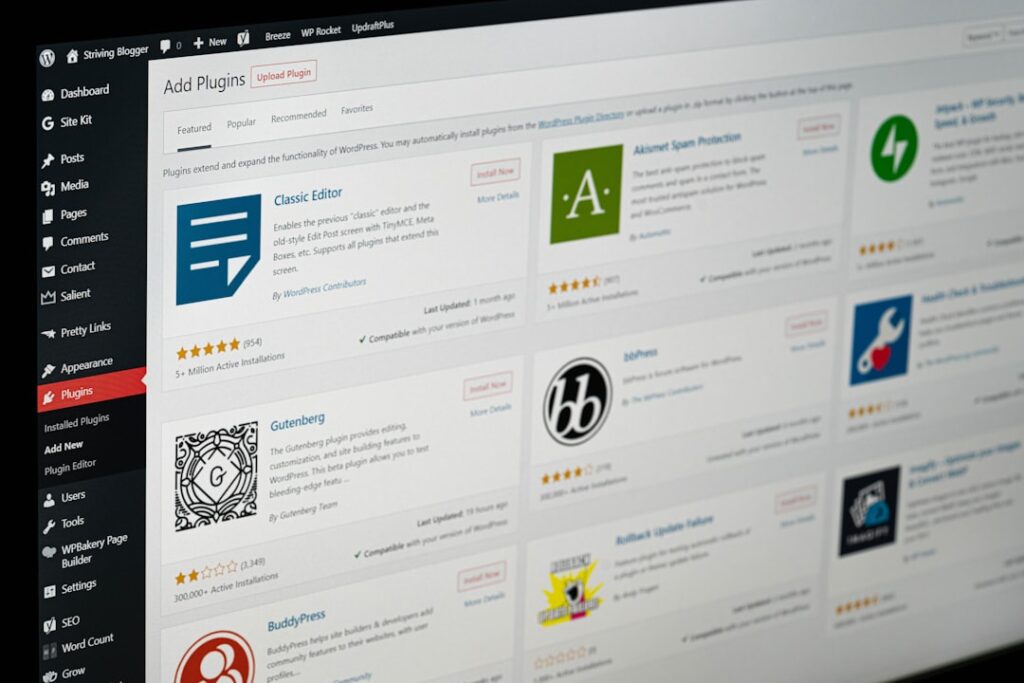
As of 2025, there are over 60,000 free plugins available in the official WordPress Plugin Repository. On top of that, there are an estimated 30,000 premium plugins across various marketplaces and independent developers. The plugin ecosystem is both WordPress’s greatest strength and its biggest source of decision paralysis for beginners.
Here’s the honest framework: install only what you need on day one. Every plugin you add is a potential performance hit, a potential conflict, and — most critically — a potential security vulnerability. 91% of WordPress vulnerabilities are in plugins. The discipline of keeping your plugin count lean is one of the most valuable habits you can build early.
The Non-Negotiable Plugins for Every New WordPress Site
An SEO plugin. Yoast SEO and Rank Math are the two dominant choices. Yoast SEO has 10+ million active installations and is the go-to for SEO optimization. Rank Math is a capable newer alternative with a generous free tier. Either works — pick one and don’t install both.
A security plugin. Wordfence (free tier is solid) or Sucuri are the most widely used. At minimum, you want a plugin that blocks login brute-force attempts and alerts you to file changes. Enable automatic WordPress core updates and plugin updates — over 56% of WordPress security incidents involve a vulnerability in an installed plugin or theme for which a patch was already available at the time of the attack. The fix existed, it just wasn’t applied.
A backup plugin. UpdraftPlus (free) is the most widely used WordPress backup solution. Configure it to back up your site automatically — at minimum weekly, ideally daily — and store the backup somewhere off-site (Google Drive, Dropbox, or Amazon S3). If your hosting includes automatic backups, that’s a good layer to have; it’s not a substitute for your own backup plugin.
A caching plugin. A caching plugin speeds up your site by serving stored versions of your pages instead of generating them fresh for every visitor. WP Super Cache (free, simple) or W3 Total Cache (free, more options) are solid choices. If your host provides server-level caching (many managed WordPress hosts do), you may not need a separate plugin — check with your host first.
A contact form plugin. WPForms Lite or Contact Form 7 are the two most-used free options. You need this before you can receive messages from visitors — WordPress doesn’t include a built-in contact form.
What to Skip for Now
You don’t need a social sharing plugin on day one (most themes include this or you can add it later). You don’t need a popup or email capture plugin until you have traffic and a reason to capture leads. You don’t need a page builder plugin unless the WordPress block editor genuinely can’t do what you need. And you definitely don’t need five different plugins doing similar jobs — pick one for each function and move on.
If you’re experiencing decision fatigue around WordPress setup, the team at WordPress AI Tools specializes in cutting through the noise — reach out for a practical consultation on which tools actually make sense for your specific site goals.
Phase 6: Creating Your First Pages and Posts
WordPress separates content into two types: Pages and Posts. Understanding the difference will save you real confusion as you build.
Pages vs. Posts: The Practical Difference
Pages are static, timeless content that lives outside the chronological blog structure. Your Home page, About page, Contact page, and Services page are all Pages. They don’t show up in your blog feed, they don’t have categories or tags, and they’re typically linked in your site navigation.
Posts are dated, categorized content that flows into your blog feed. They support categories, tags, and comments. If you’re publishing articles, tutorials, news, or any kind of regularly updated content, those are Posts.
The First Four Pages Every Site Needs
Home Page. Go to Settings → Reading and set a “static page” as your homepage (rather than the default blog feed) if you want a custom landing page. Create a page called “Home” first, then assign it there.
About Page. Who you are, who you serve, and why you do what you do. This is often the second-most visited page on a new site. Don’t skip it.
Contact Page. Drop your contact form plugin’s form shortcode or block here. Make it easy to find — link it from your main navigation menu.
Privacy Policy. Required if you collect any user data (contact form submissions, email signups, analytics). WordPress includes a Privacy Policy page generator under Settings → Privacy. Use it as a starting point — it’s not a substitute for legal advice, but it covers the basics.
Using the WordPress Block Editor
The WordPress block editor (Gutenberg) builds pages and posts out of individual blocks: paragraph blocks, heading blocks, image blocks, button blocks, column layouts, and more. Click the “+” icon to add a block. Click any existing block to edit it. The right sidebar shows formatting and style options for whatever block is selected.
It genuinely takes about 20–30 minutes of clicking around before it starts feeling intuitive. That’s not a flaw — it’s just a learning curve. Stick with it before reaching for a page builder plugin. Most of what beginners think they need a page builder for can be done natively with columns, groups, and cover blocks.
The Honest Trade-Offs: What’s Actually Hard vs. What Just Feels Intimidating
One of the most useful things any WordPress tutorial can do is accurately calibrate the difficulty of what you’re about to face. The confusion usually isn’t about actual complexity — it’s about unfamiliar terminology and the fear of breaking something. Here’s an honest breakdown:
Things That Just Feel Scary (But Aren’t)
Installing WordPress. As described above, the one-click installer makes this genuinely straightforward. If you’ve ever installed an app on your phone, this is comparable in difficulty.
Updating plugins, themes, and WordPress core. One button click from the Dashboard → Updates screen. Enable automatic updates for everything and it happens without you needing to think about it.
The WordPress dashboard interface. It looks complex on first visit because there are a lot of menus. But 90% of what you’ll do as a beginner lives in five places: Posts, Pages, Appearance, Plugins, and Settings. Ignore the rest until you need it.
Using the block editor. 20–30 minutes of hands-on time makes it click. Watch one short video tutorial if you’re stuck, but don’t let it stall you from launching.
Things That Are Actually Harder Than They Look
Getting consistent page speed performance. Speed optimization involves your hosting quality, your theme, your image sizes, caching configuration, and plugin overhead. None of these steps are hard individually, but optimizing them all takes trial, measurement (use Google PageSpeed Insights), and iteration.
Debugging a broken site after a plugin update. Plugin conflicts happen. If your site goes white or throws an error after an update, you’ll need to troubleshoot by deactivating plugins one by one — ideally in a staging environment. This is manageable with a good backup in place, but it can be stressful the first time it happens. Always back up before updating.
SEO beyond the basics. Installing Yoast or Rank Math is easy. Actually optimizing your content for search — keyword research, on-page structure, building authority over time — is a genuine long-term skill. The plugin is a starting point, not a shortcut.
Making design decisions. This is where most non-designers get stuck. The technical implementation of your design in WordPress is usually easy. Deciding what looks good and why is harder. If you’re not a designer, start with a theme that already looks the way you want and customize as little as possible. Done is better than perfect.
Common Mistakes That Cost Beginners Time and Money

Most guides bury this section at the end where fewer people read it. It belongs near the front. These are the mistakes that show up most consistently — and the ones most easily avoided with a bit of forewarning.
1. Buying Hosting Based Only on Promotional Price
Already covered above, but worth repeating: if you are considering an entry-level WordPress hosting plan, be aware that your low introductory rate will likely balloon at renewal. It’s not uncommon for entry-level hosting renewal rates to triple in price. Budget for the renewal rate, not the promo rate.
2. Installing Too Many Plugins
Each plugin adds code that runs on every page load. More importantly, 91% of vulnerabilities are in plugins. A lean plugin set that does exactly what you need is faster, more secure, and easier to maintain than a sprawling collection of overlapping tools. If you can’t explain why a plugin is installed, deactivate and delete it.
3. Using “admin” as Your Username
The single most commonly targeted WordPress admin username in brute-force attacks is “admin.” If your one-click installer defaults to this (some do), create a new admin user with a different username immediately, log in as that new user, and delete the old “admin” account.
4. Skipping Backups Until It’s Too Late
A backup you haven’t configured is not a backup. Install UpdraftPlus (or your chosen backup plugin), schedule automatic backups, connect it to off-site storage, and verify a backup has actually run before you need it. Finding out your backup plugin was never configured properly is a painful lesson that’s completely preventable.
5. Chasing the “Perfect” Theme Before Building Anything
Theme paralysis is real and expensive in time. Most beginners spend more time testing themes than it would take to just pick a well-reviewed lightweight theme and start creating content. You can change your theme later. Your content is what actually matters — start there.
6. Ignoring Core and Plugin Updates
Over 56% of WordPress security incidents involve a vulnerability in an installed plugin or theme for which a patch was already available at the time of the attack. The fix existed, it just wasn’t applied. Enable automatic updates for minor WordPress core releases, and make a habit of applying plugin and theme updates weekly. It takes minutes and prevents the majority of security incidents.
Frequently Asked Questions About Starting With WordPress
Your Next Steps: From Tutorial to Live Site
If you’ve read this far, you have everything you need to make smart decisions at every phase of your WordPress build. The path from here to a live site looks like this: choose your hosting with full awareness of renewal pricing, install WordPress with one click, run through the initial settings checklist, pick a lightweight and well-maintained theme, install only the five essential plugins, build your core pages, and publish your first post.
None of these steps requires coding knowledge. All of them benefit from having a clear picture of what you’re building before you start clicking. The biggest enemy isn’t technical difficulty — it’s the paralysis that comes from too many options and not enough prioritization. This guide was designed to fix exactly that.
WordPress rewards patience and iteration. Your first site won’t be perfect, and it doesn’t need to be. Launch something real, gather feedback, and improve. That cycle — build, publish, learn, improve — is how every skilled WordPress user you admire got where they are.
If you’d like personalized guidance on which tools, hosting setup, or configuration approach makes sense for your specific situation — whether you’re a solopreneur, a small business owner, or a blogger getting started — the team at WordPress AI Tools is here to help. Contact us today for a no-pressure consultation tailored to where you actually are, not a generic checklist. We’ll help you cut through the noise and build something that works.
Frequently Asked Questions
Do I need to know how to code to build a WordPress site?
No. The vast majority of WordPress sites are built without any custom code. The WordPress block editor, themes, and plugins handle design, layout, and functionality visually. You may eventually want to make minor CSS tweaks, but that’s optional and well-documented online — it is not a prerequisite for launching a functional site.
How much does it actually cost to launch a WordPress site?
A realistic budget for a basic self-hosted WordPress site is $50–150 for year one (hosting intro rate + domain) and $100–200+ per year from year two onward once renewal rates kick in. Many essentials — WordPress itself, the block editor, and most core plugins — are free. Premium themes average around $59. Factor in hosting renewal rates, not just the promotional price, when planning your budget.
What is the difference between WordPress.com and WordPress.org?
WordPress.org is the free, open-source self-hosted platform — you download the software and install it on your own hosting. WordPress.com is a managed hosted platform where the company handles hosting for you, but with restrictions on plugins, themes, and customization on lower-tier plans. Most serious sites use WordPress.org (self-hosted) for full control and flexibility.
How many plugins should a beginner install?
Start with five essential categories: an SEO plugin (Yoast SEO or Rank Math), a security plugin (Wordfence), a backup plugin (UpdraftPlus), a caching plugin (WP Super Cache), and a contact form plugin (WPForms Lite or Contact Form 7). That is it for day one. Each plugin adds code weight and potential security exposure — keep your plugin list lean and expand it only as specific needs arise.
Is it safe to use free WordPress themes and plugins?
Yes, with caveats. Free themes and plugins from the official WordPress.org repository are reviewed and generally safe. The key risk is abandonment — a theme or plugin that is no longer maintained will not receive security patches. Always check that a theme or plugin has been updated within the last 6 months, has active installs, and has positive reviews before installing. Avoid downloading themes or plugins from random third-party sites outside the official repository.

